Don’t you think browsing the web could be so much more aesthetic than the cluttered tabs you see in Chrome or Safari?
Horse Browser is a new web browser, designed for online research. As you browse, every link opens in a new page and is saved on a Trail, a list of nested pages stored in your sidebar. This means you can keep track of research and say goodbye to the messy tabs you’re used to. Its minimalist design makes your desktop look so much more aesthetic.
In this blog post, we’ll be sharing how to customise Horse Browser with custom emojis and icons. Not only will you improve the look of your browser, you can also categorise and organise your Trails with your own visual coding system.
How to customise Horse Browser
Not only does Horse Browser look more elegant than Chrome, it is also highly customisable.
Today you’ll learn how to customise and personalise Horse Browser with your own custom icons and emojis… Now that deserves #HeartEyes and a smiley face, for sure.
How to Add Emojis and Custom Icons
Using emojis and custom icons in Horse Browser is a super useful way to differentiate between pages and add some meaning to your Trails, at a quick glance.
How To Access The Emojis Menu
Add those apple, sushi or cute heart symbols to your text and notes. To bring up the emoji menu:
- Visit Menu > Edit > Emojis and Symbols
How To Add Emojis and Icons To Your Trails
To add a custom icon or emoji to your Trails:
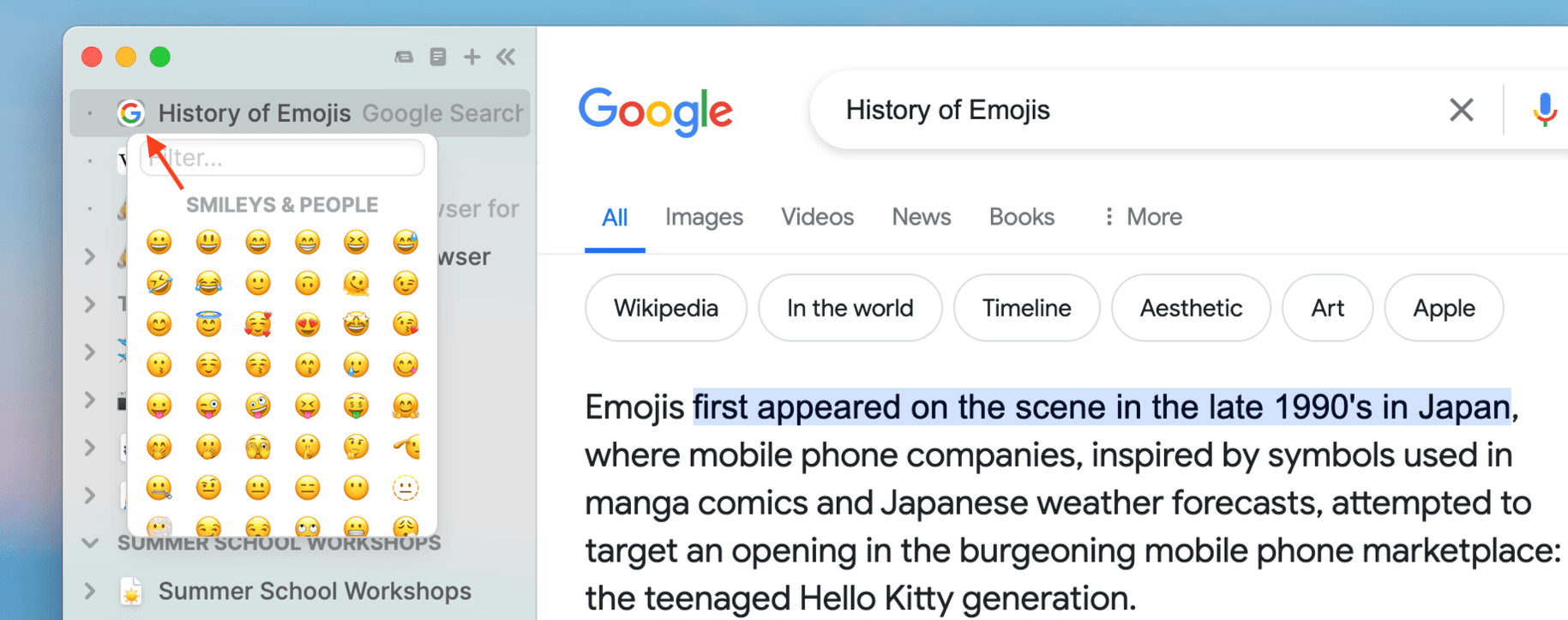
- Click on the icon and select your preferred emoji or icon. You can also remove the icon in the same way.

- Right-click or click on ••• on the relevant Trail and select Set Icon.
With Horse Browser, it’s easy to customise your browser set-up and make it your own.
In conclusion
Who said browsing had to be boring? By adding custom icons and emojis to Horse Browser, you can add fun visuals to your every day browsing experience. Or you can use icons and emojis to create personalised categorisations to help code your tasks and research.
To learn more about Horse Browser, visit here. Or read more how-to guides in our Manual blog series.