How to create folders in Horse Browser

August 21st, 2023

Folders and Areas are two ways to group Trails. Folder for filing related research; Area for keeping whole parts of life from bleeding into each other.

373 words by Eleanor McKeown

Horse Browser has two ways to group Trails together: Folders and Areas. They look similar at first and people often ask which one to use. The short answer: Folders for related research, Areas for whole parts of life.

Folder vs Area

A Folder is a Trail that starts with a folder rather than a web page. Useful for grouping related Trails, say, every Trail you've opened while planning a trip, or every Trail about a single client.

An Area is a top-level container with its own header. Most people end up with one for work, one for personal stuff, and maybe a third for a side project. Each Area can hold Trails, Folders, and Notes.

Folders and Areas existed because early users kept asking for them after spending an afternoon in the sidebar. The shape of the request was always the same: "I have a lot of Trails on the same theme, I want them grouped."

How to Create A Folder in Horse Browser

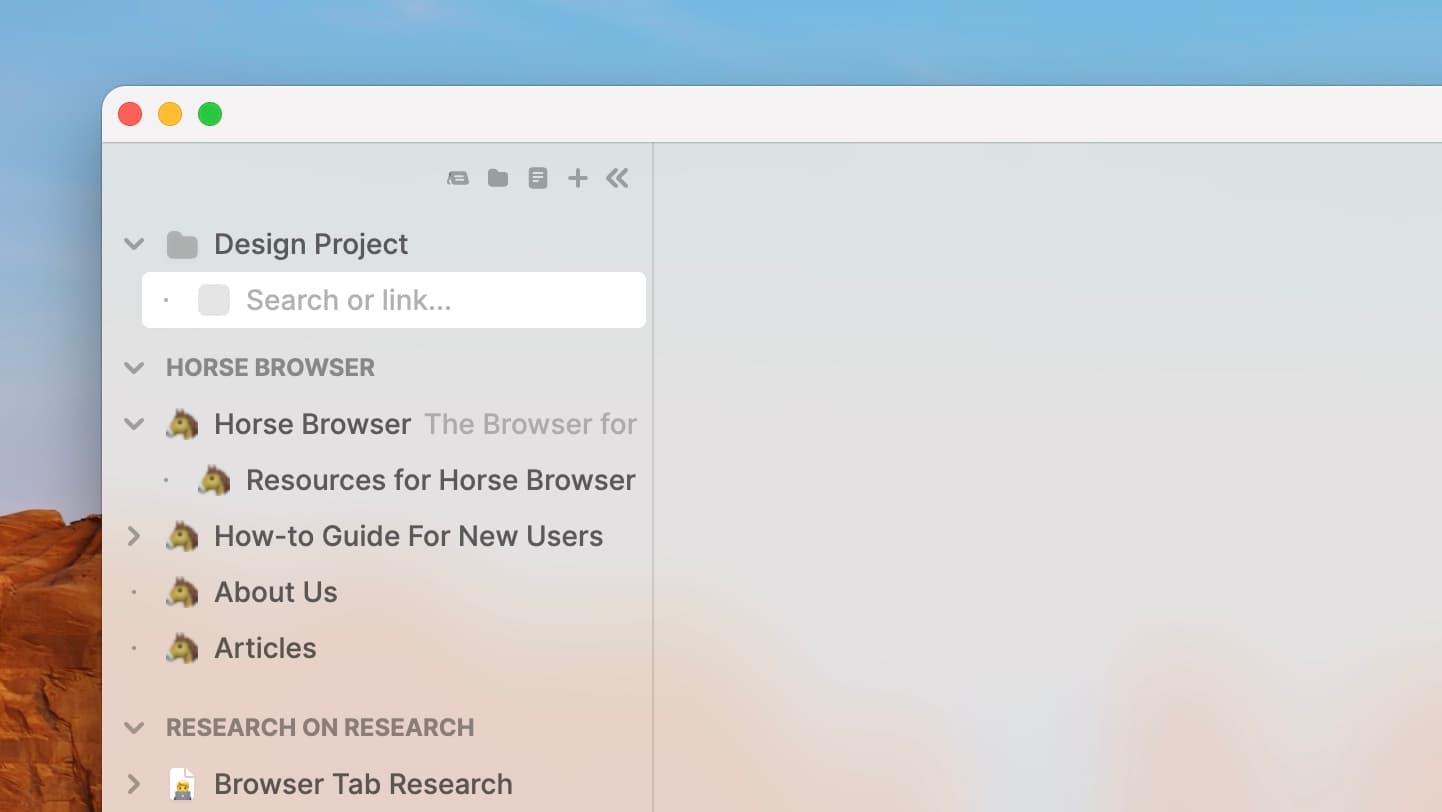
  1. To open a new Folder, click on the folder icon at the top of the sidebar

    Opening a new folder in Horse Browser
    Opening a new folder in Horse Browser
  2. Write the name of your Folder and hit Return to save
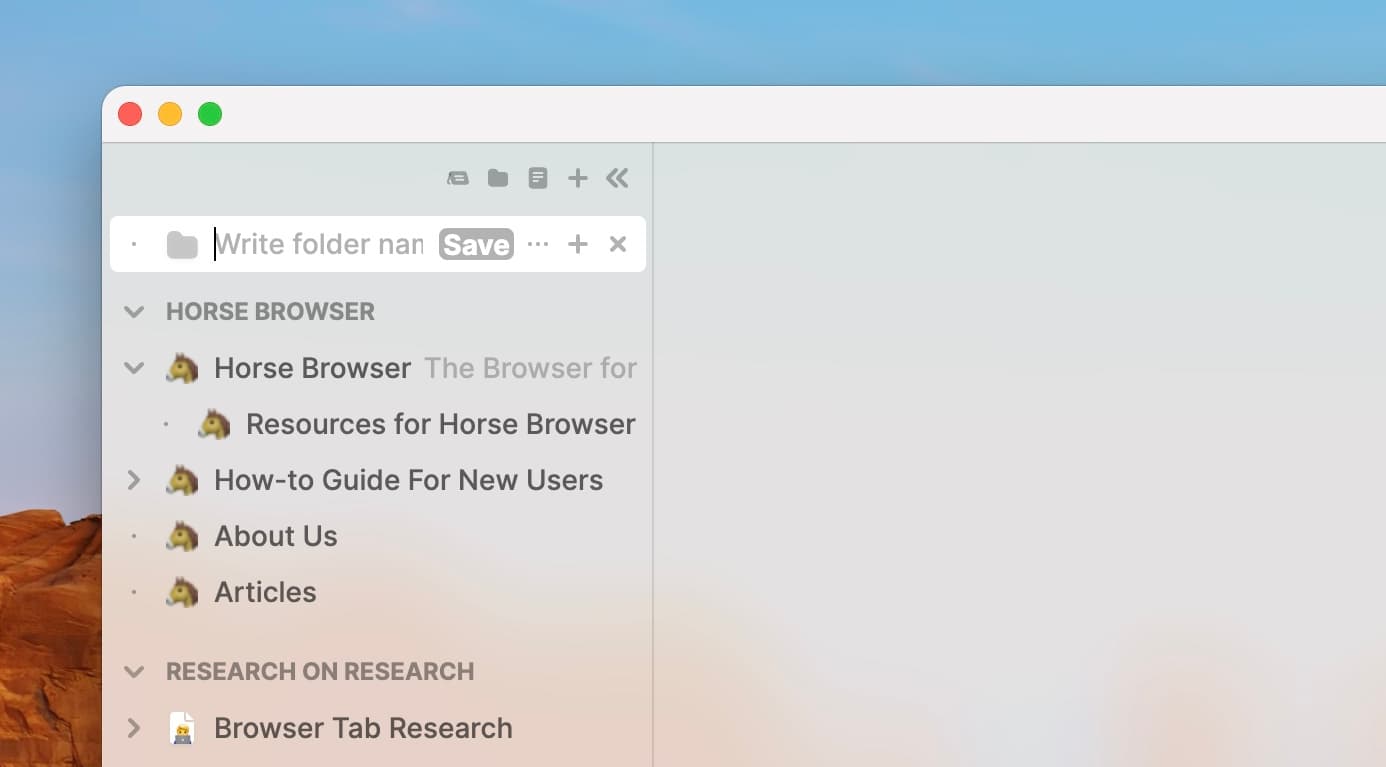
    Folder feature open in Horse Browser with space to write Folder name
    Folder feature open in Horse Browser with space to write Folder name
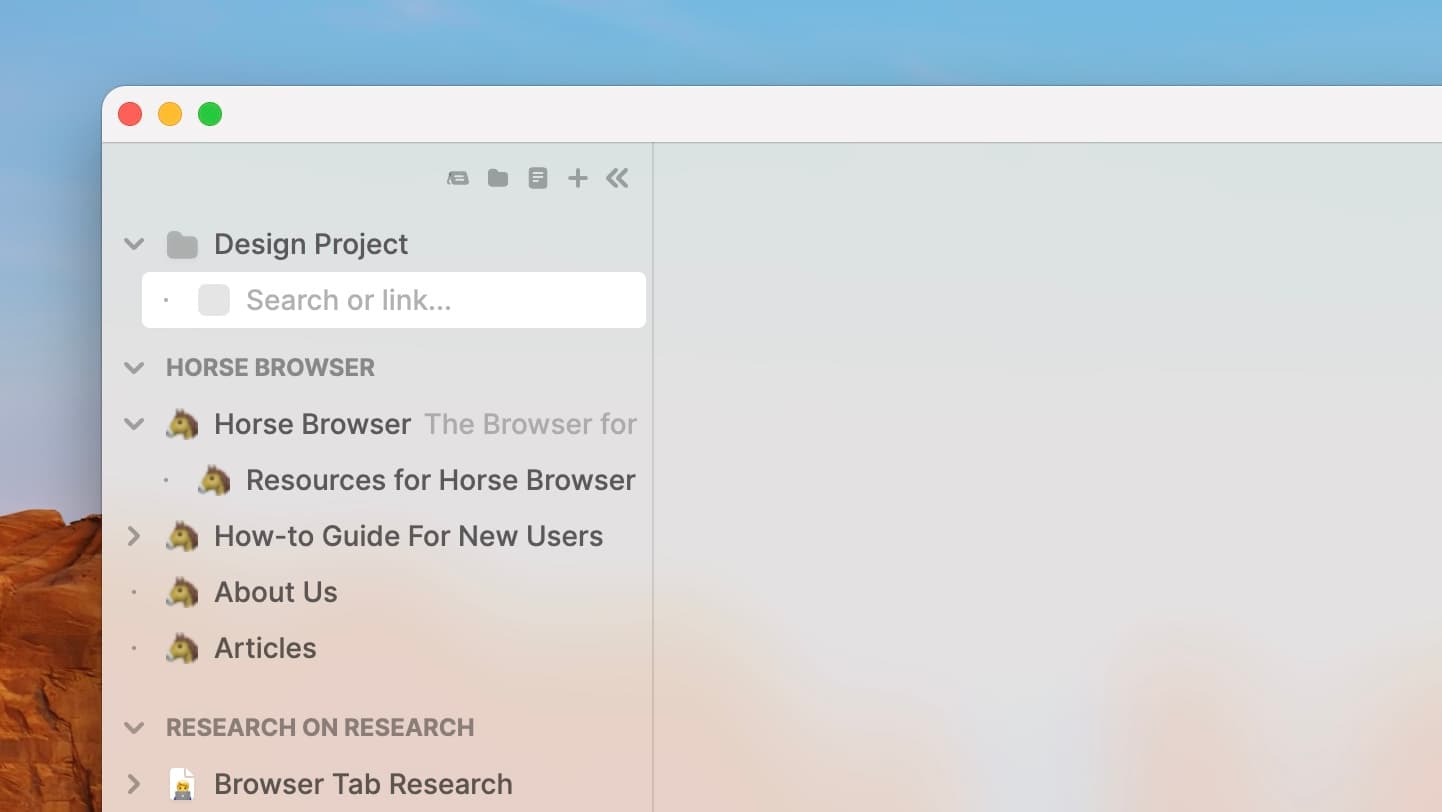
  3. Scroll over the Folder and click + to add a Subtrail in your Folder. Or use ⌥ ⌘ T on Mac or Alt + Ctrl + T on Windows and Linux. You can also add a Side Trail by using ⌥ ⇧ ⌘ T on Mac or Alt + Ctrl + Shift + T on Windows / Linux.

    Folder feature with new blank Trail open below
    Folder feature with new blank Trail open below
  4. Alternatively, simply drag-and-drop Trails, Folders or Notes inside

How to Create An Area in Horse Browser

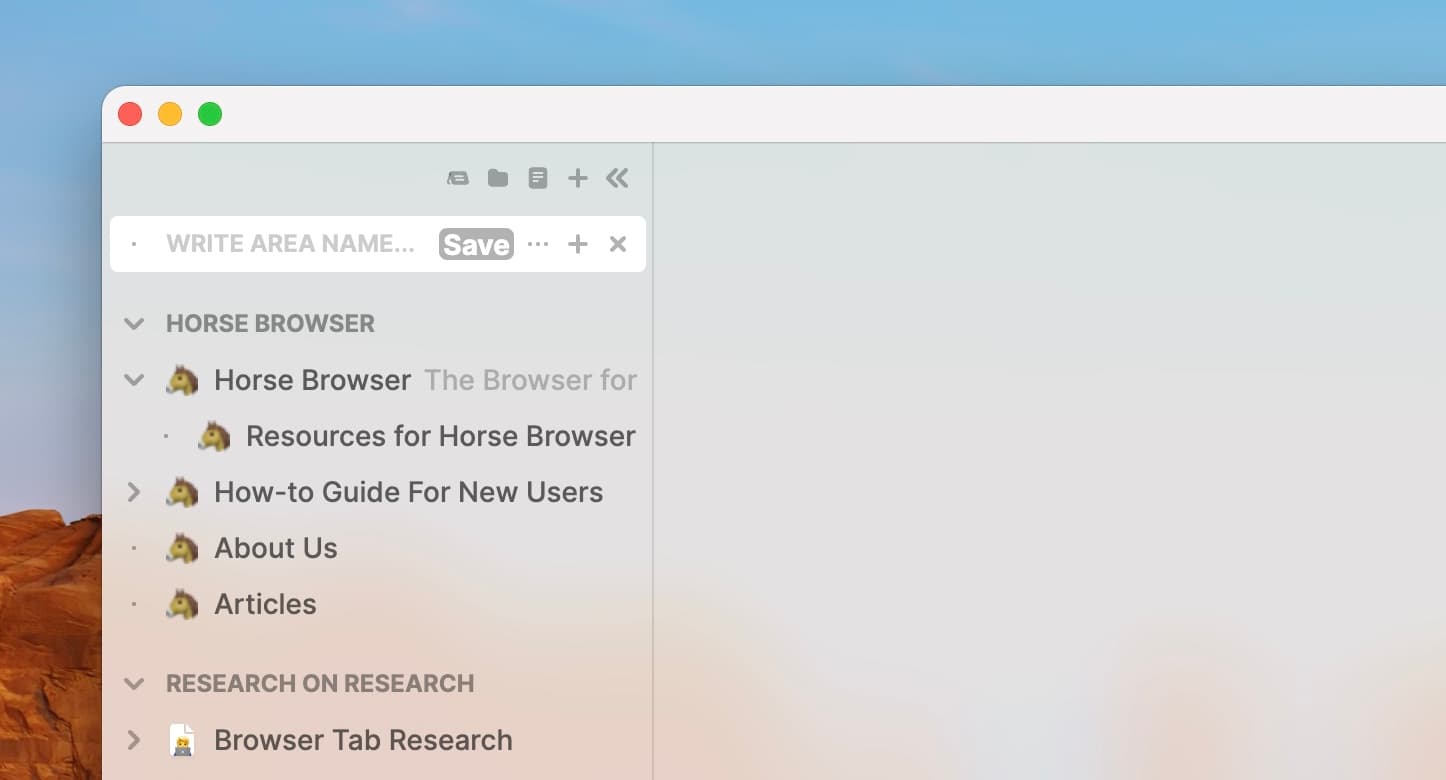
  1. To open a new Area, click on the icon on the left at the top of the sidebar
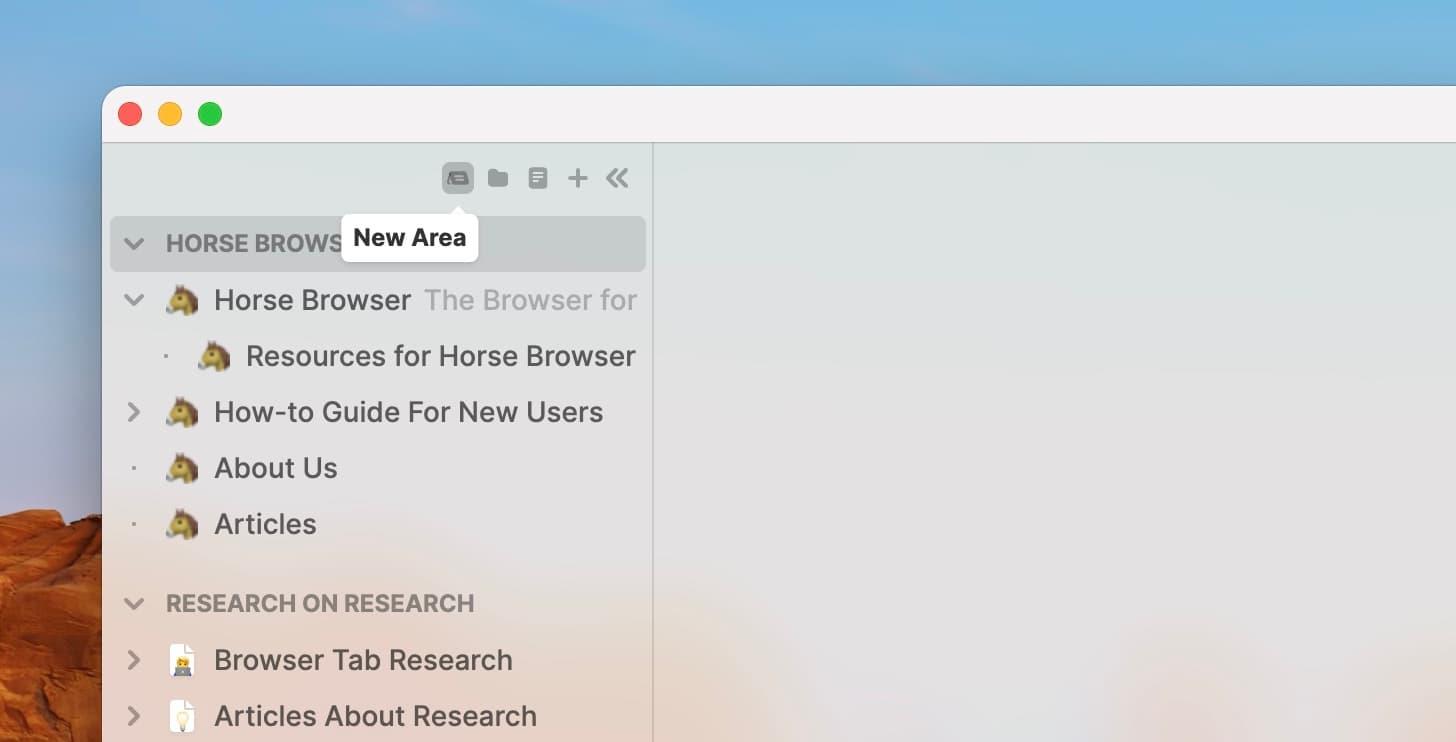
    Opening a new Area feature in Horse Browser
    Opening a new Area feature in Horse Browser
  2. Write the name of your Area and hit Return to save

    Area name input field in Horse Browser
    Area name input field in Horse Browser
  3. Scroll over the Area and click + to add Subtrails to your Area. Or use ⌥ ⌘ T on Mac or Alt + Ctrl + T on Windows and Linux. You can also add a Side Trail by using ⌥ ⇧ ⌘ T on Mac or Alt + Ctrl + Shift + T on Windows / Linux.

    Folder with expanded blank Trail open beneath in Horse Browser
    Folder with expanded blank Trail open beneath in Horse Browser
  4. Alternatively, simply drag-and-drop Trails inside

More

The Areas, Folders and Notes guide is the more thorough version, with screenshots for each container.

folders.gif
folders.gif

Get on the Horse

The browser designed for ADHD minds and research workflows. Organize your browsing with Trails® and stay focused on what matters.

favicon
Japanese Green TeasGoogle Search
favicon
Japanese Green TeaWikipedia
favicon
MatchaWikipedia
favicon
SenchaWikipedia
Sencha

From Wikipedia, the free encyclopedia

Sencha tea leaves and brewed tea

Sencha tea leaves and brewed tea

Sencha (煎茶) is a type of Japanese ryokucha (緑茶, green tea) which is prepared by infusing the processed whole tea leaves in hot water. This is as opposed to matcha (抹茶), powdered Japanese green tea, where the green tea powder is mixed with hot water and therefore the leaf itself is included in the beverage. Sencha is the most popular tea in Japan.
Types of sencha

The types of sencha are distinguished by when they are harvested. Shincha(新茶, "new tea") represents the first month's harvest of sencha. Basically, it's the same as ichibancha(一番茶, "first tea"), which is the first harvest of the year.

Kabusecha (かぶせ茶) is sencha grown in the shade for about a week before harvest. Asamushi (浅蒸し) is lightly steamed sencha, while fukamushi (深蒸し) is deeply steamed sencha.

Production

Sencha tea is made from the leaves of the Camellia sinensis plant. The leaves are steamed, rolled, and dried immediately after harvest to prevent oxidation. This process preserves the fresh, grassy flavor that sencha is known for.

The steaming process used in making sencha is what differentiates it from Chinese green teas, which are typically pan-fired. The duration of the steaming process affects the final taste and color of the tea.

Brewing

Sencha is typically brewed at lower temperatures than black tea or oolong tea. The ideal water temperature is usually between 60–80°C (140–176°F), with brewing time ranging from 1 to 2 minutes.

The tea can be brewed multiple times, with each infusion revealing different flavor notes. The first brew tends to be more astringent and fresh, while subsequent brews become milder and sweeter.

Join Our Community

Stay connected with updates, participate in discussions, and help shape the future of Horse Browser through our community channels.

Handled through Mailchimp. Unsubscribe anytime.
Horse Browser NewsletterIssue #12
rider's digest logo, a cowboy taming a horse

Turn your Browser into the Ultimate Productivity System.

You don't need a todo list, or a notes app. Your browser can do these things. But it should be more integrated than simply loading a website. This is where Horse Browser comes in, with built-in productivity features that make your browser a powerful tool.

Read the Manual

The full user manual: getting started, basics, navigation, features, and the FAQ.

Pascal and Eleanor at Disneysea Tokyo

Need Help?

Access your account, manage billing, and find answers to frequently asked questions about Horse Browser.

Pascal and Eleanor at Disneysea Tokyo