Google Chrome is one of the most popular web browsers, known for its speed, simplicity, and extensive customisation options. If you prefer using Chrome over Safari on your Mac, setting it as your default browser ensures that links open directly in Chrome instead of Apple’s built-in browser.
In this guide, we’ll walk you through the steps to make Chrome your default browser on Mac and Chromebook. And if you’re exploring alternative browsers designed for productivity and organisation, we’ll also introduce Horse Browser, a powerful new way to manage your online work.
How to Set Chrome as Your Default Browser on Mac
Making Chrome your default browser on macOS is quick and easy:
- Download and Install Chrome
• If you haven’t already, download Google Chrome from the official website.
• Open the downloaded file and follow the installation steps.
- Open Chrome and Set as Default
• Launch Google Chrome.
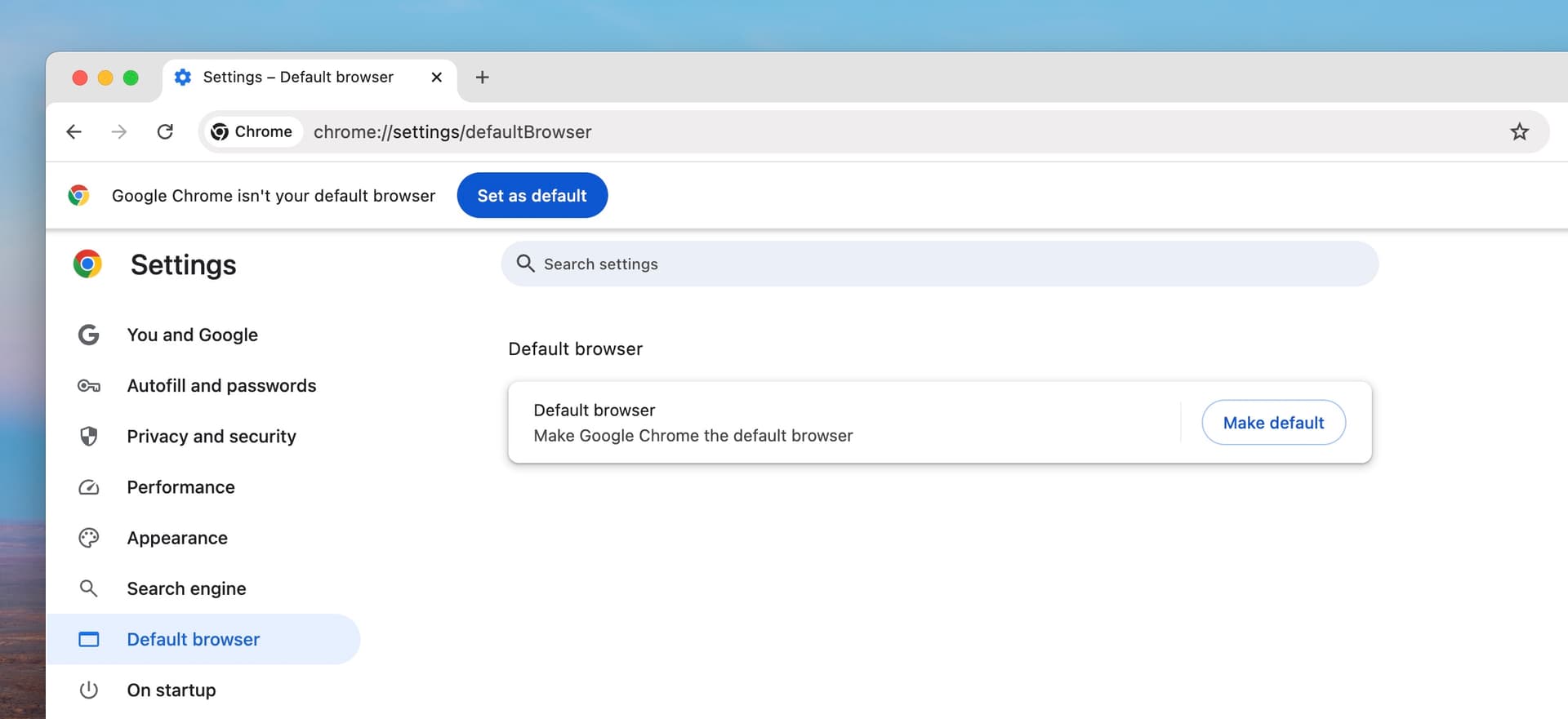
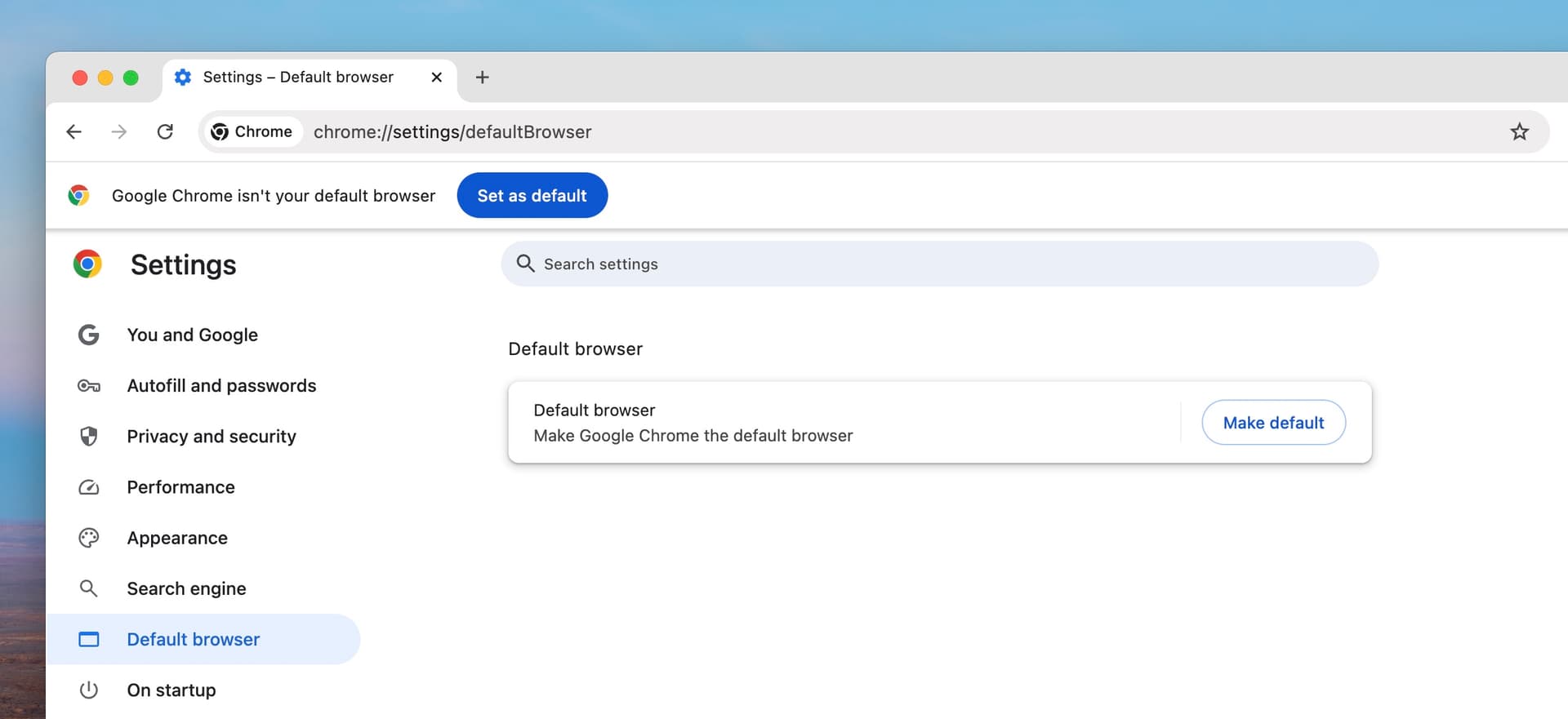
• Click on the three-dot menu in the top-right corner.
• Go to Settings > Default browser.
• Click Make default and confirm your choice.
- Set Chrome as Default in macOS System Preferences (if needed)
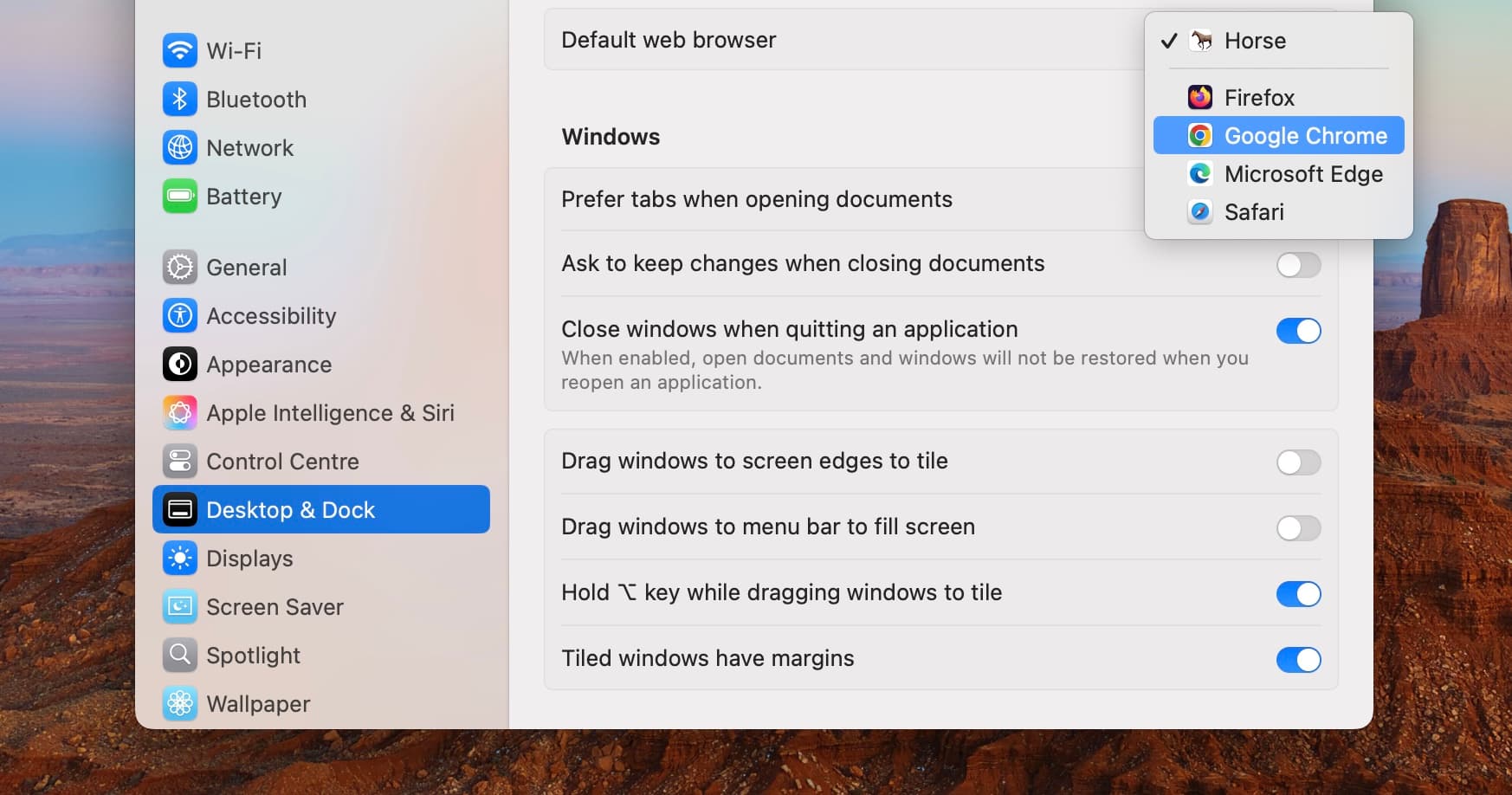
• Open System Settings (or System Preferences in older macOS versions).
• Click Desktop & Dock in the sidebar.
• Scroll down to Default web browser and select Google Chrome from the list.
Once you’ve completed these steps, all links will open in Chrome by default.
Looking for a Smarter Alternative? Try Horse Browser
While Chrome is a great choice for speed and compatibility, it doesn’t always offer the best experience for organising online work. That’s where Horse Browser comes in.
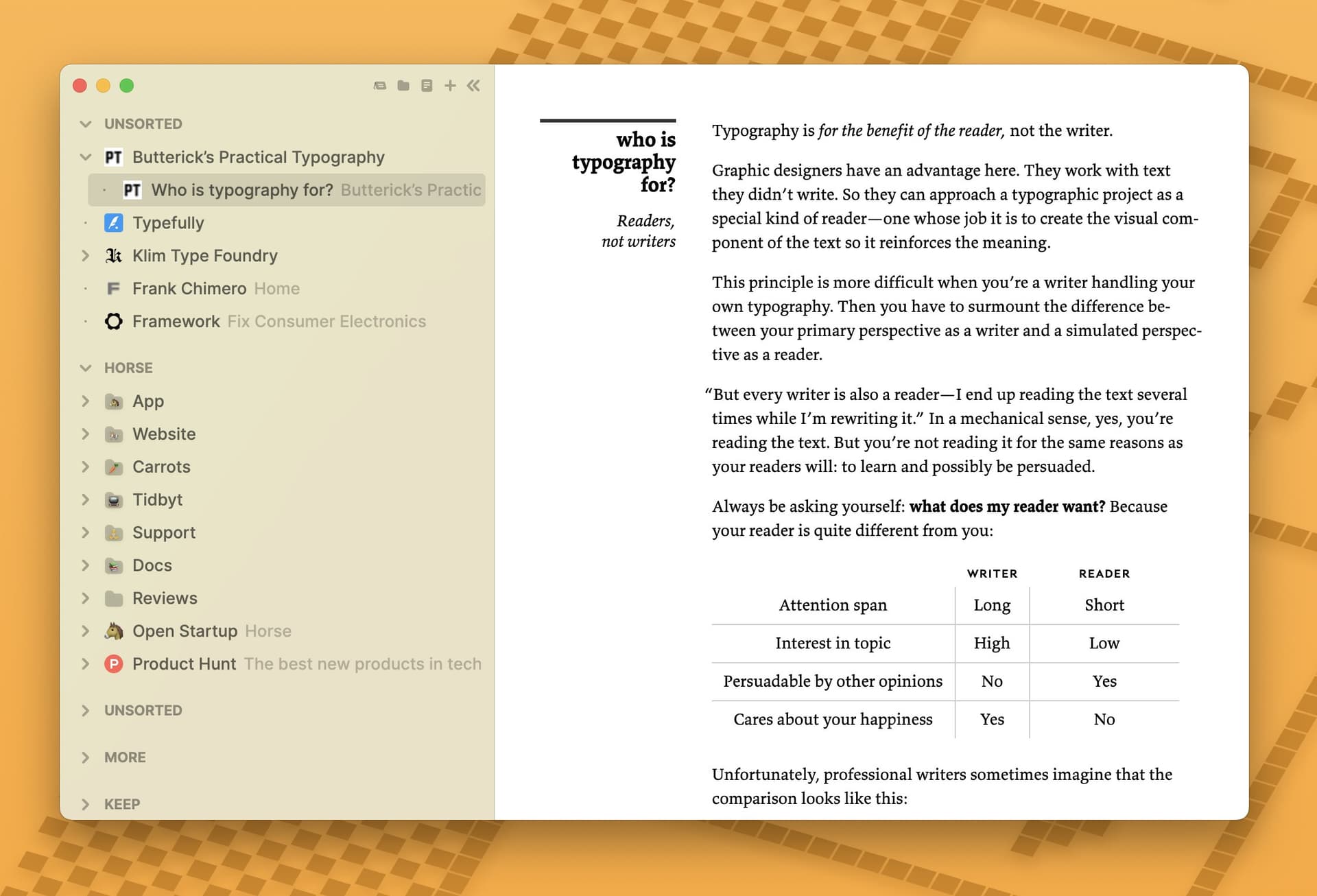
Horse is a next-generation browser designed for people who manage research, projects, and workflows online. With its **Trails navigation system**, Horse replaces traditional tabs with a structured, visual way to track your browsing history, bookmarks, and open pages, all in one place.
Why Horse is a Powerful Alternative to Chrome:
• Better Organisation – Say goodbye to messy tabs. Horse keeps your pages structured and organised in a collapsible vertical sidebar, which you can customise as you wish.
• Automatic Saving – All pages are saved for easy access later, even after shutting down and updating your browser.
• Distraction-Free Design – Ad blocking and a minimal interface help you stay focused.
• Custom Workflows – Organise your browsing with folders, notes, and personalised setups.
If you’re looking for a browser that doubles as a productivity tool, give **Horse** a try.
Final Thoughts
Setting Google Chrome as your default browser on Mac is simple, but if you’re looking for an alternative that takes online work to the next level, **Horse** is worth exploring. Whether you stick with Chrome or switch to a more structured workflow, the key is choosing a browser that helps you work smarter.