Horse Browser is a new web browser, designed for online research. As you browse, every link opens in a new page and is saved on a Trail, a list of nested pages stored in your sidebar. This means you can keep track of research and say goodbye to the messy tabs you’re used to.
In this blog post, we’ll be sharing how to update and close Horse Browser.
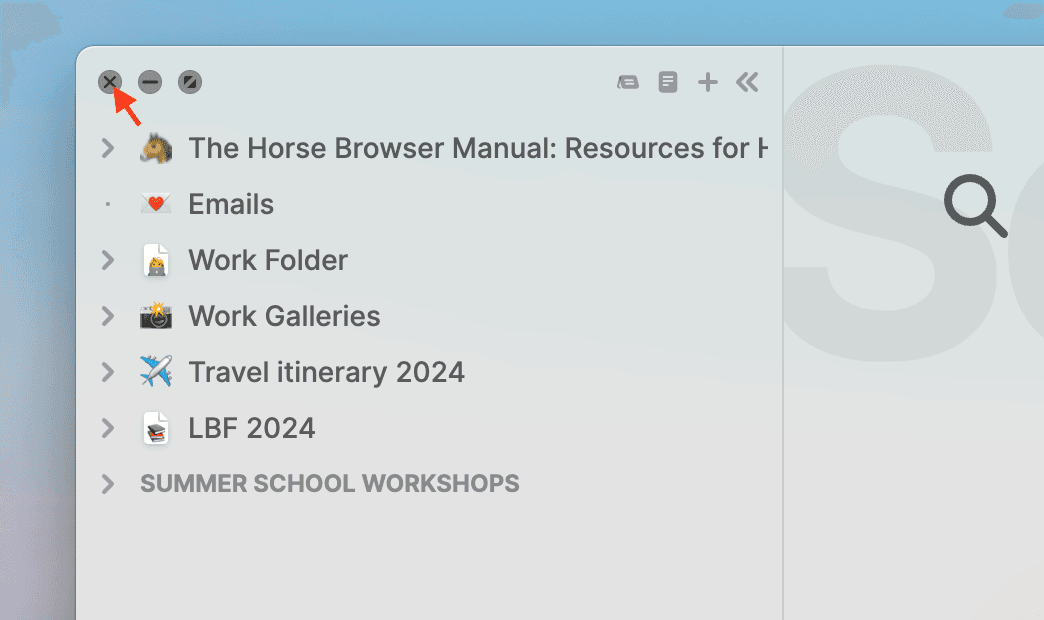
How to Close Horse Browser
Closing Horse Browser couldn’t be easier.
- Just click on the X at the top of your browser to close the browser temporarily
- To fully quit the browser, right click on the browser icon and choose Quit or go to Menu > Horse > Quit Horse. Alternatively, use the keyboard shortcut ⌘ + Q on Mac or Ctrl + Q on Windows / Linux.
How to Update Horse Browser
- You’ll receive a notification whenever Horse has a pending update
- Simply quit and re-open Horse, whenever it suits you, and Horse Browser will automatically update
- Make sure you regularly update to the latest version of Horse Browser for the smoothest ride
In conclusion
Closing and updating Horse Browser is a very simple process. Whenever you close or update Horse Browser, all your Trails will be automatically saved and waiting for you when you next open your browser. Make sure that you are always using the most up-to-date version of Horse by quitting the browser, when an update is pending.
To learn more about Horse Browser, visit here. Or read further posts in our Manual blog series.