Feeling annoyed by distracting online ads when you’re trying to focus online?
Horse Browser is a new web browser, designed for online research. As you browse, every link opens in a new page and is saved on a Trail, a list of nested pages stored in your sidebar. This means you can keep track of research and say goodbye to the messy tabs you’re used to in Google Chrome.
In this blog post, we’ll be sharing how to use Horse Browser’s powerful in-built Ad Blocker so you can watch YouTube ad-free and stop annoying pop-up ads.
How to Block Ads with Horse Browser
Blocking Ads with Horse Browser is a very simple process, since Horse Browser’s in-built Ad Blocker is turned on by default. This means that, as soon as you have downloaded and installed Horse Browser, you can start browsing ad-free.
For increased flexibility, you can also enable and disable it manually.
To turn on Ad Blocker manually in Horse Browser, visit Menu > Settings or ⌘ + , on Mac or Ctrl + , on Windows / Linux.
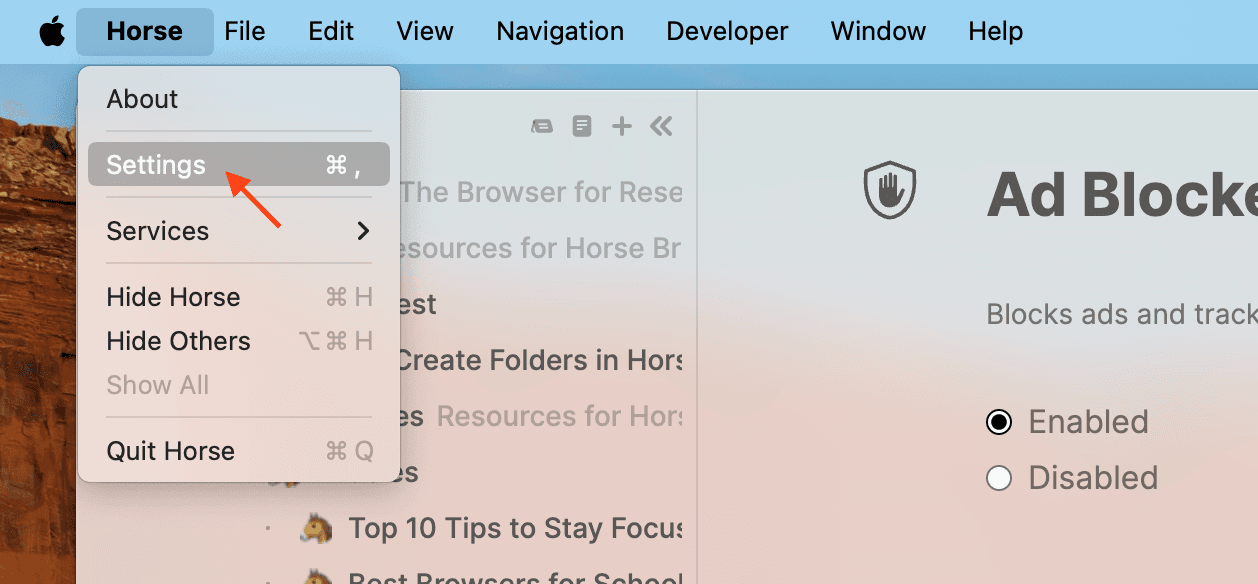
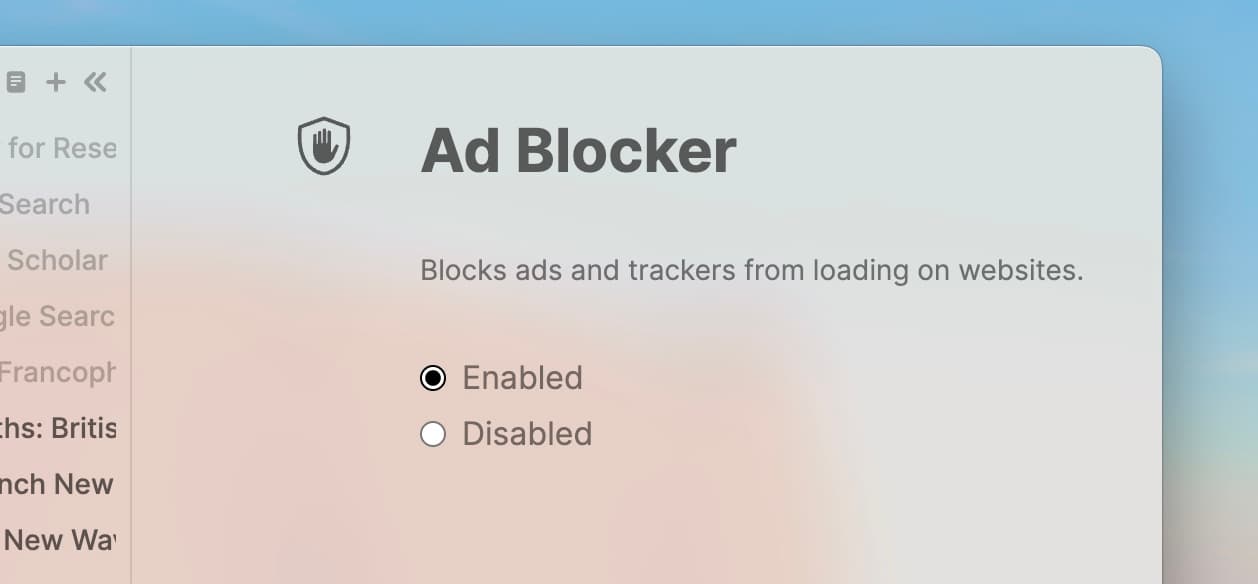
You will then be directed to the Settings page where you can enable or disable the Ad Blocker.
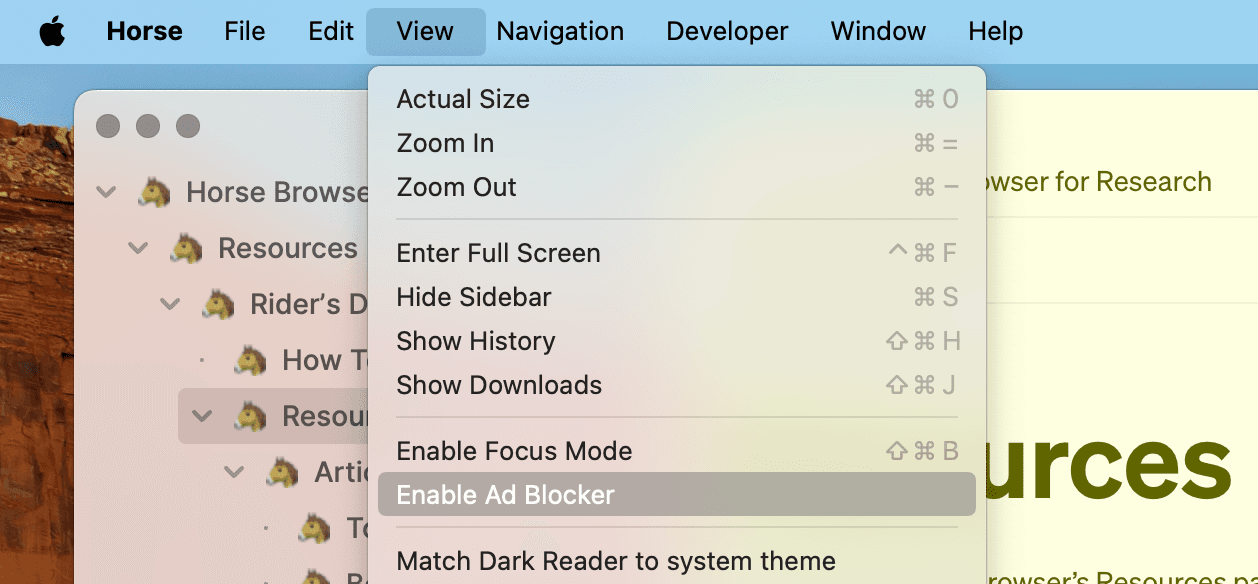
Alternatively, you can directly enable the Ad Blocker from the Menu itself. Visit Menu > View > Enable Ad Blocker.
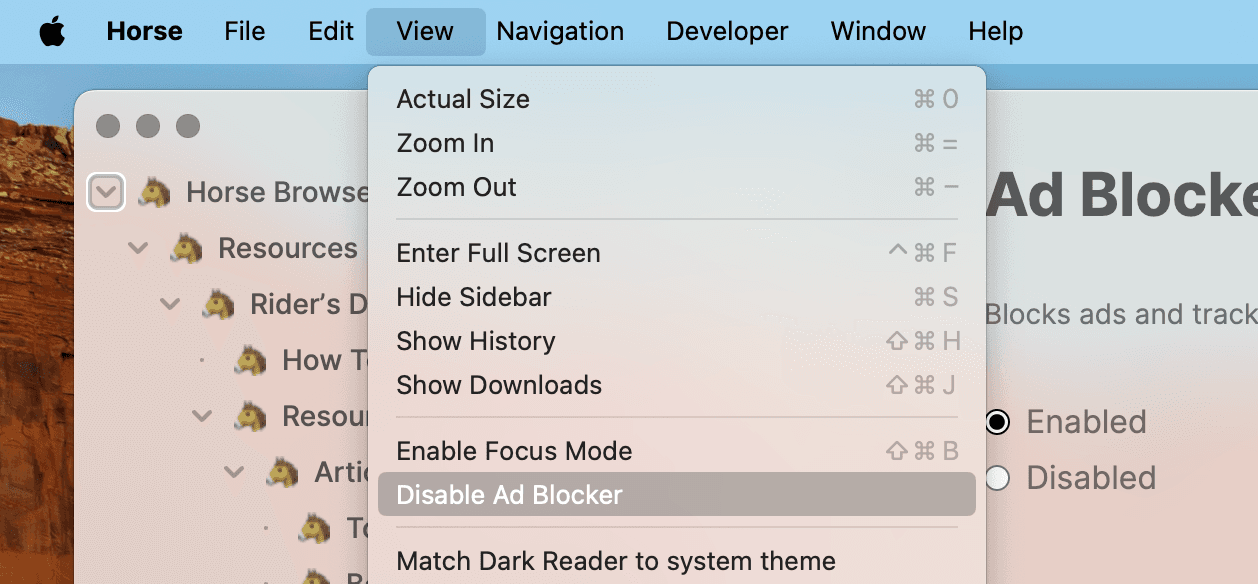
If you wish to turn off Ad Blocker, you can likewise go to Menu > View > Disable Ad Blocker.
In conclusion
Using Horse Browser’s in-built Ad Blocker is an easy process. By blocking ads in Horse Browser, you’ll be able to browse distraction-free and fully focus on your research and tasks.
To learn more about Horse Browser, visit here. Or read more how-to guides in our Manual blog series.