An Area is a top-level container in Horse Browser's sidebar, a Trail with its own header that holds other Trails, Folders, and Notes. Most people end up with one Area for work and one for personal stuff, sometimes a third for a side project.
Creating an Area
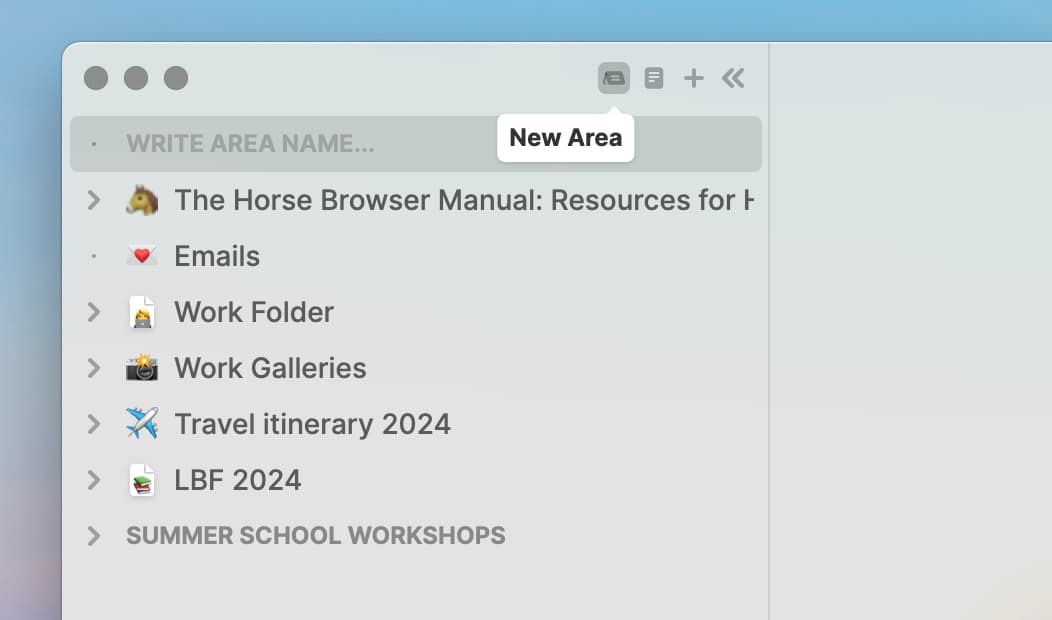
- Click the Area icon at the top-left of the sidebar.
- Type a name and hit Return.
- Hover over the Area and click + to add a Sub-Trail. Or use ⌥ + ⌘ + T (Mac) / Alt + Ctrl + T (Win/Linux).
- Or just drag existing Trails into it.
More
The Folders guide covers when to reach for a Folder instead, and the Areas, Folders and Notes guide covers all three containers together.