Do you find yourself Googling the same things over and over? Or endlessly scrolling through your browser history trying to find that one site you just had open? Maybe you’ve given up altogether and simply keep your browser running with every important tab left open, just in case. But what happens when you need to restart your computer? Or when staring at a sea of 100 tabs makes you feel overwhelmed and anxious?
In this article, we’ll cover two solutions that can help you automatically reopen your tabs.
Why Is It Important To Automatically Reopen Tabs?
It might seem like a small tweak, but enabling your browser to automatically reopen tabs can lead to big productivity gains. Instead of wasting time digging through your history, re-Googling the same sites, or trying to wrangle a mess of bookmarks, everything you need is just there, ready to go when you are.
It also helps combat tab overwhelm. The more tabs you have open, the harder it is to focus. You’re more likely to context-switch, which eats into your mental energy and slows you down. Research has shown it takes an average of 9.5 minutes to regain full focus after context-switching. Multiply that by the number of times you bounce between tabs each day, and it’s clear: your browser could be silently sabotaging your productivity.
And there’s another benefit: no more leaving your browser running just to save your place. Keeping your browser open indefinitely can impact the performance of your machine. When tabs reopen automatically, you can finally shut things down, install updates, and give your machine the break it deserves. Your future self (and your computer) will thank you.
How To Reopen Tabs From Your Last Session By Default
It’s a fact often overlooked by users but Chrome browser offers an option to reopen tabs from your last browsing session by default. It’s not totally foolproof, but it is a great hack, if you find yourself needing to reopen closed tabs frequently.
By using this setting, you’ll automatically restore tabs from your last session by default, meaning you can always pick up where you left off. Obviously this method has its limitations as you are restricted to reopening tabs from your last browser session only. For a more complete solution, read on to our next tip.
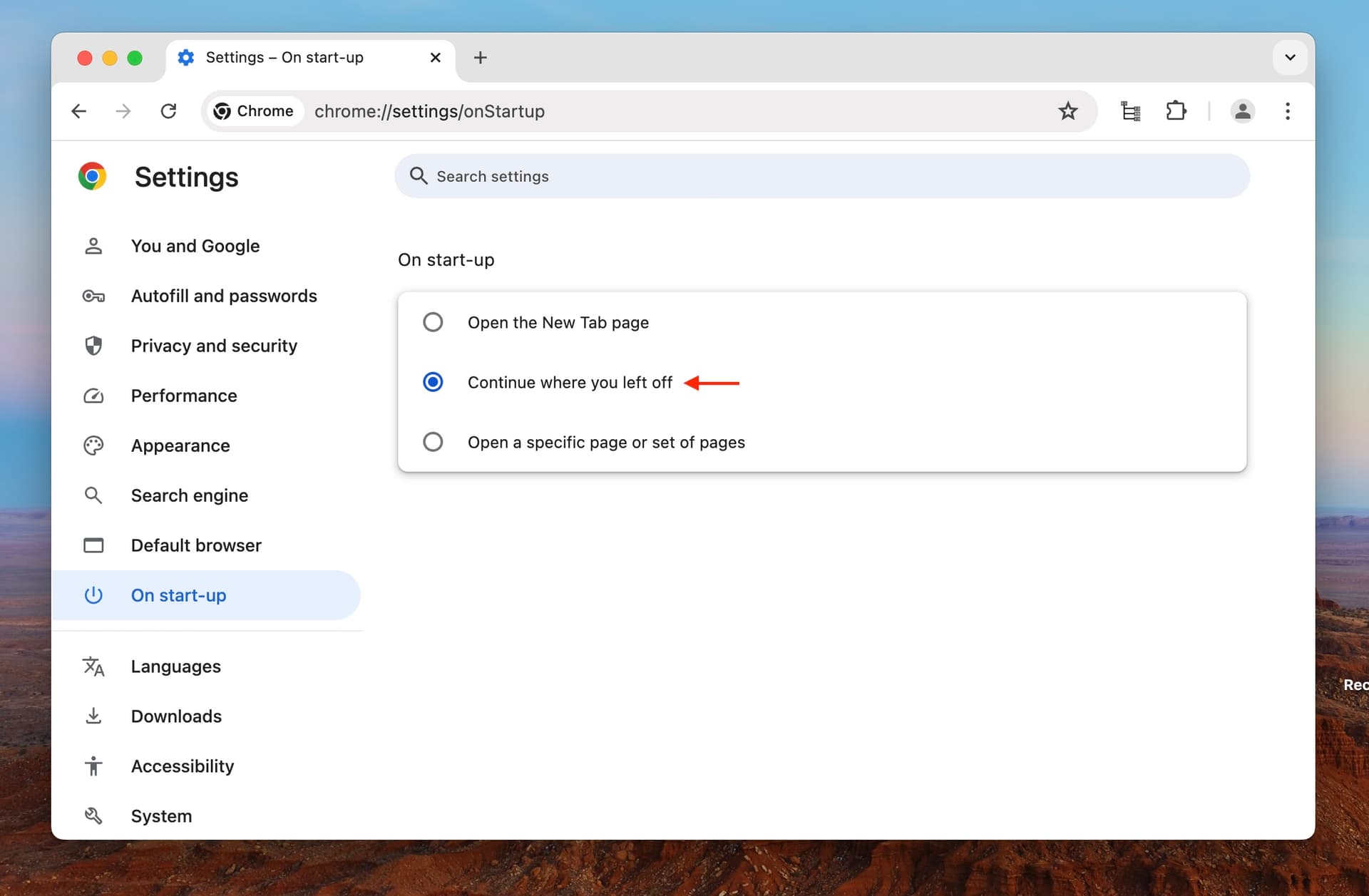
Meanwhile, without further ado, here’s how to restore tabs by default when you restart Chrome:
- Go to Chrome in the Menu (or click the 3-dot menu in the upper-right corner of the browser)
- Select Settings (you can also access Settings via the keyboard shortcut ⌘+, on Mac or Ctrl+, on Windows / Linux)
- Choose the On Start-up option in the Settings sidebar
- Click to enable the setting Continue where you left off
How To Reopen Any Tab You Need By Default
If you find the Chrome solution too restrictive for your needs, we suggest you take a look at Horse Browser. It takes an innovative new approach to browsing, automatically saving all your searches and sites, no matter which browsing session they belong to. This solution gives you total peace of mind that you’ll never lose the information you need and boosts your productivity by saving you precious time.
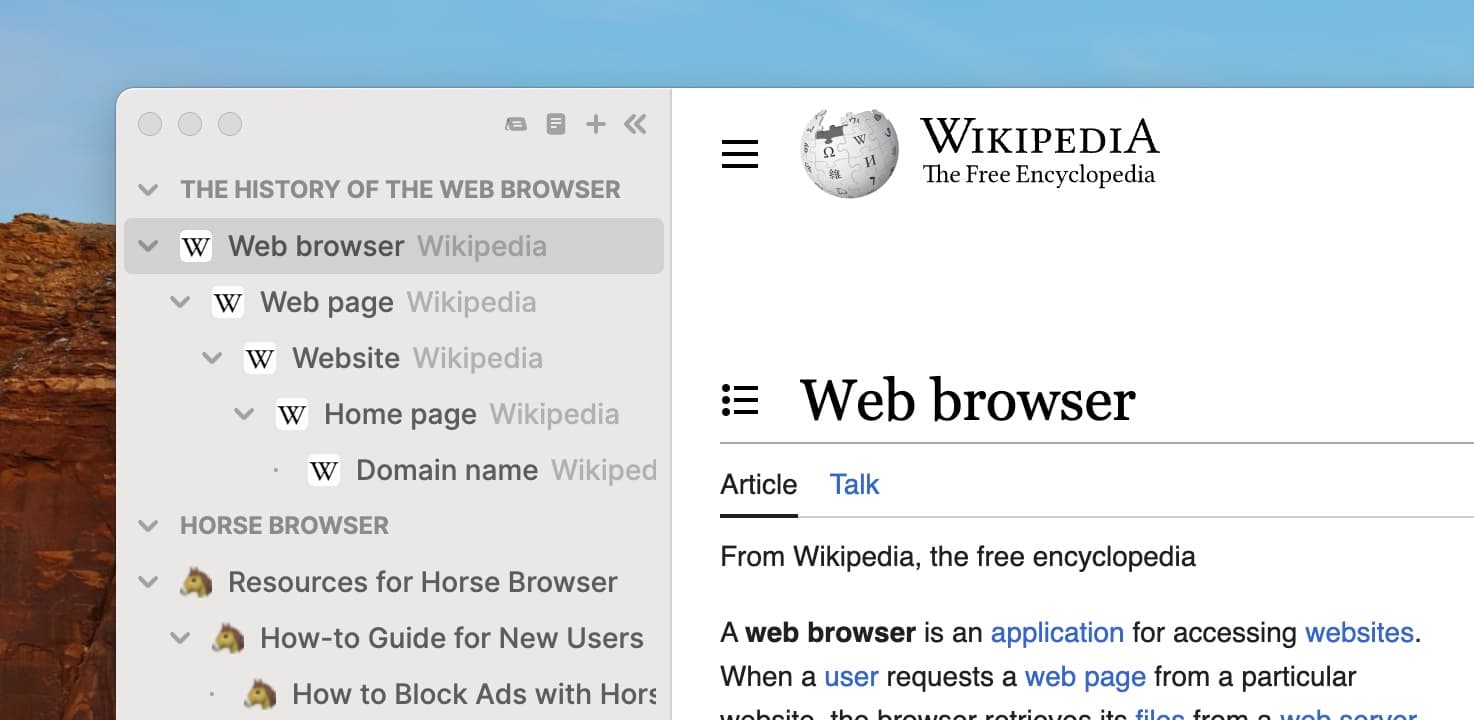
Horse Browser replaces tabs with its own unique navigational method, named Trails. When you click on a link, a new page is automatically opened on the Trail, creating nested pages that perfectly track your online research. So you can see exactly how you reached a particular page at one quick glance. Re-open Horse Browser and you’ll find everything you need, conveniently stored in the sidebar, which you can organise as you wish. Drag-and-drop pages to where you need them most, rename your pages with memorable titles, or even add emojis for your own cataloguing system.
When Horse Browser closes or quits, all your pages are automatically saved, even after a total shutdown or update. To find out more and try out Horse Browser for yourself, check it out here.
In conclusion
By choosing the option to Continue where you left off in Chrome’s Settings, you can automatically reopen tabs from your last browsing session. It’s useful hack, if you’re frequently reopening the same sites or searching your browser history. If you want a more flexible and better approach to reopening tabs by default, we strongly suggest taking a look at Horse Browser.
Because Horse Browser replaces tabs with Trails, you’ll always reopen the pages you need, no matter which browsing session you originally opened them in. All the pages you need will be readily accessible and perfectly organised, even after a total shut down or update. Save precious time, mental stress and computer speed by switching to an alternative.