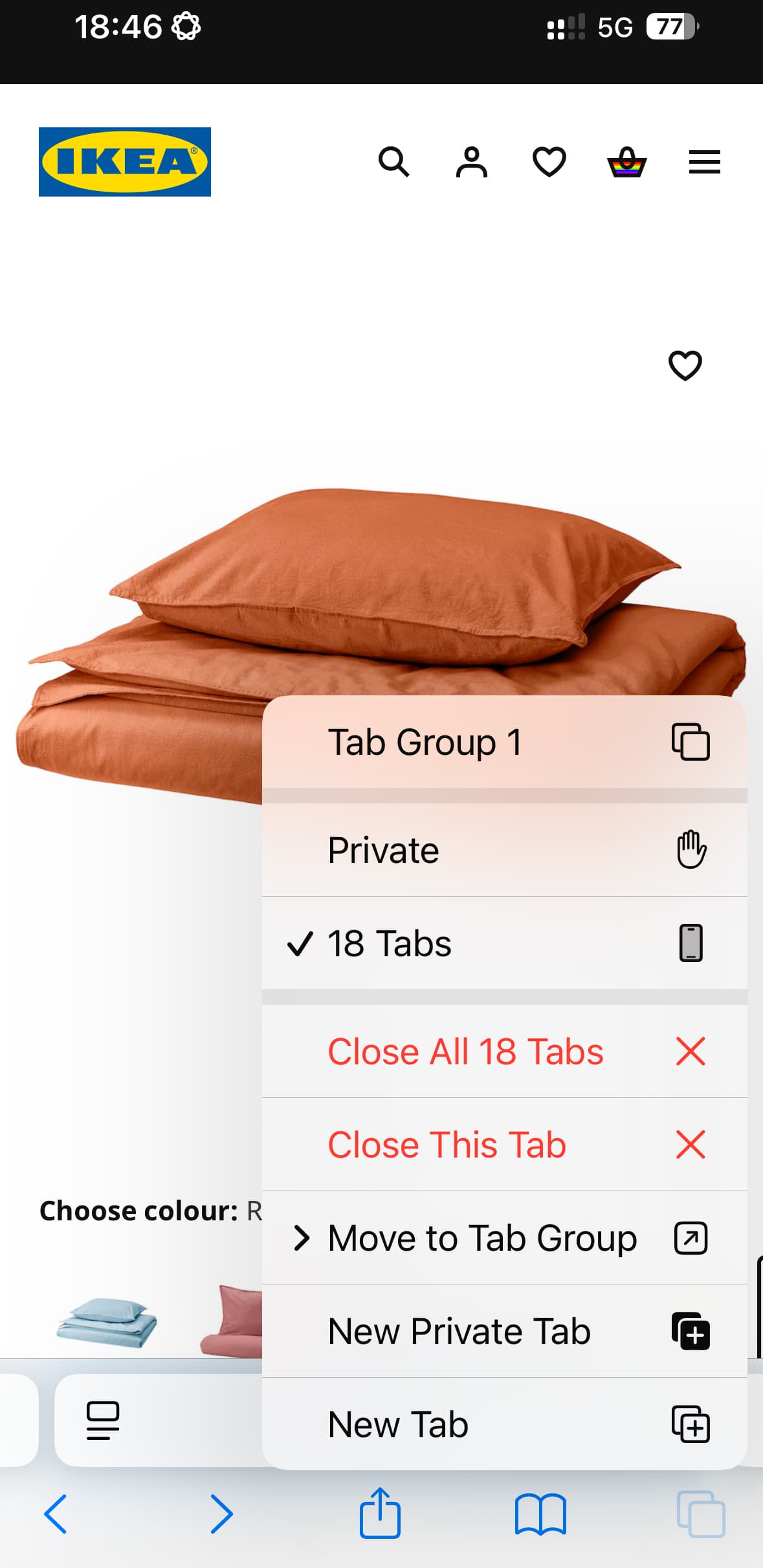
Are you overwhelmed by a sea of open tabs on your mobile browser? Too many tabs can slow down your phone, drain battery life, and make it harder to find what you need. Fortunately, closing all tabs at once is an easy way to start fresh and keep your browsing experience smooth. In this guide, we’ll walk you through how to close all tabs on your iPhone across a variety of browsers, plus we’ll share tips on how to manage tabs more effectively, including a way to eliminate tab overload entirely.
Why Close All Tabs?
Leaving dozens of tabs open in the background may seem harmless, but it can result in mental overwhelm and disorganised browsing online.
Benefits of Closing All Tabs
Closing all tabs on your iPhone helps reduce visual clutter, making it easier to find what you actually need. A clean browser feels more organised and less overwhelming, allowing you to focus without endless distractions from old, unnecessary tabs.
When Should You Close All Tabs?
• After finishing research or a project
• When handing your phone to someone else
• If your browser starts lagging or crashing
Closing All Tabs on Your iPhone
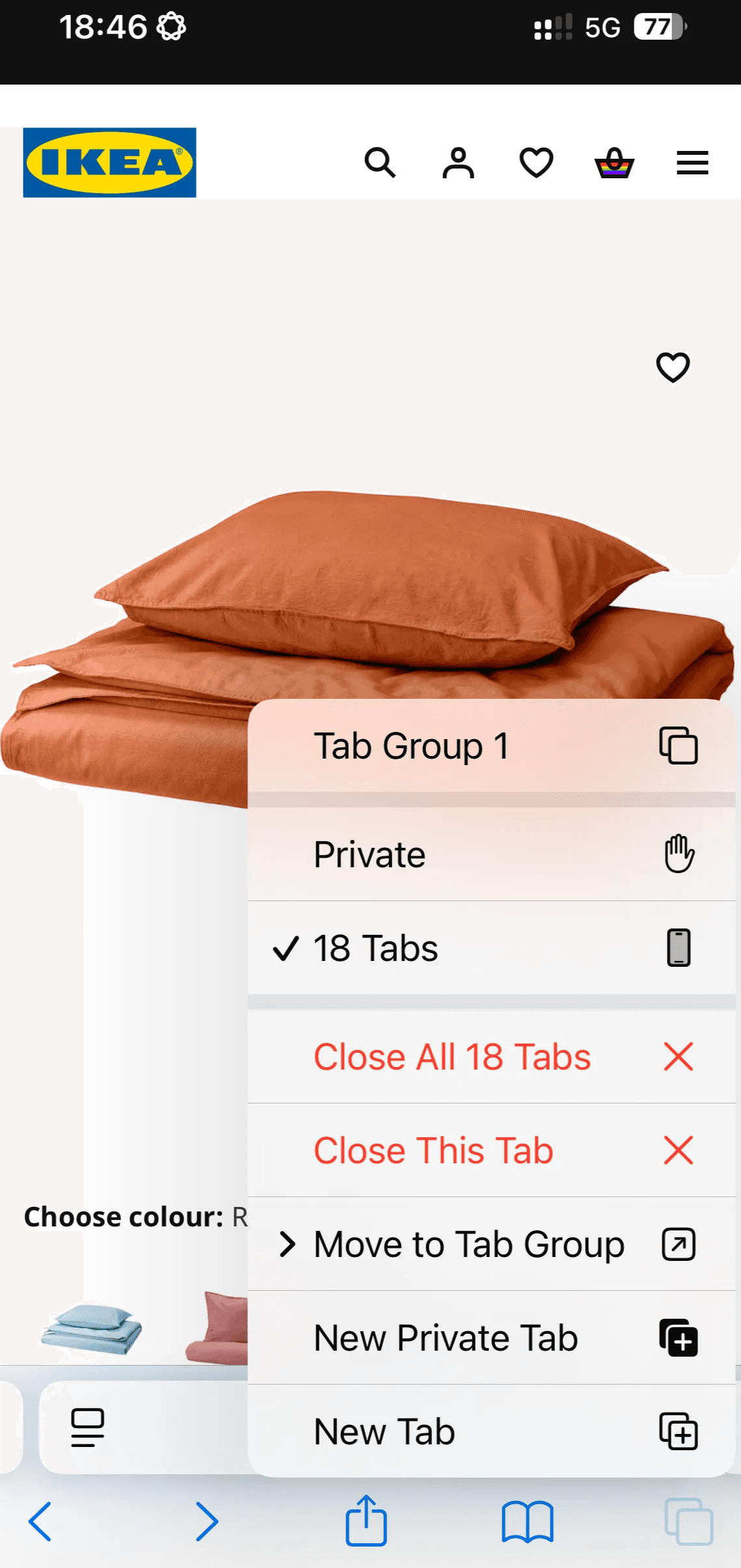
How to Close All Safari Tabs on your iPhone
- Open the Safari app on your iPhone.
- Tap and hold the tabs icon in the bottom-right corner of your screen.
- In the pop-up menu, choose “Close All Tabs”
- Confirm that you want to close all the open tabs in the browser by choosing “Close All Tabs”
How to close all Firefox tabs on your iPhone
- Open the Firefox app on your iPhone.
- Select the tabs icon, which resembles a box with a number inside.
- Select the trash can symbol.
- Choose “Close All Tabs.”
How to close all Chrome tabs on your iPhone
- Open the Chrome app on your iPhone.
- Select the box-shaped tabs button at the bottom of your screen.
- Tap “Edit” in the bottom-left corner.
- Choose “Close All Tabs.”
How to close all Microsoft Edge tabs on your iPhone
- Open Microsoft Edge on your iPhone.
- Press tabs icon, which resembles a box with a number inside.
- Select the “Close All” option at the bottom of your screen.
- Confirm that you want to close all the open tabs in the browser by tapping “Close.”
A Better Way to Manage Tabs on Desktop
Avoid Tab Overload with Trails
If you find yourself constantly drowning in tabs on your phone, chances are the same happens on your computer. Instead of struggling to manage endless browser tabs, we advise making the switch to Horse Browser for desktop.
Horse replaces traditional tab management with Trails, a smarter way to navigate and save your browsing history. With Trails, every page you visit is automatically stored, just like a mix of tabs, history, and bookmarks in one seamless system. Even if you close the browser or restart your computer, your work remains easily accessible in the sidebar. No more tab overload, no more losing important pages.
Conclusion
Closing all tabs on your phone is a great way to refresh your browsing experience and improve your device’s performance. But if you’re constantly struggling with tab overload (on your phone and your computer), it may be time to rethink how you manage your browser. While mobile browsers still rely on traditional tabs, using a smarter desktop solution like Horse can free you from the cycle of tab chaos, without losing any of your precious online information and favourite sites. Keeping your digital space organised will help you browse more efficiently and with less stress.