The last post covered the small habits that make the sidebar comfortable. This one covers the bigger containers, what to reach for when one sidebar is starting to hold more than one life.
What Trailheads, Folders, and Notes are
All three are kinds of Trail, just with different shapes.
A Trailhead is the outermost container, with its own header. Most people end up with one for work, one for personal stuff, and maybe one for a side project. Each Trailhead can hold Trails®, Folders, and Notes.
A Folder is a Trail that starts with a folder rather than a web page. Useful for grouping related Trails inside a Trailhead.
A Note is a Trail you can write inside, instead of (or alongside) loading web pages. Notes are plain text.
How to use Trailheads in Horse
To open a new Trailhead, click on the icon on the left at the top of the sidebar or use the following keyboard shortcut, ⌘+⌥+N.
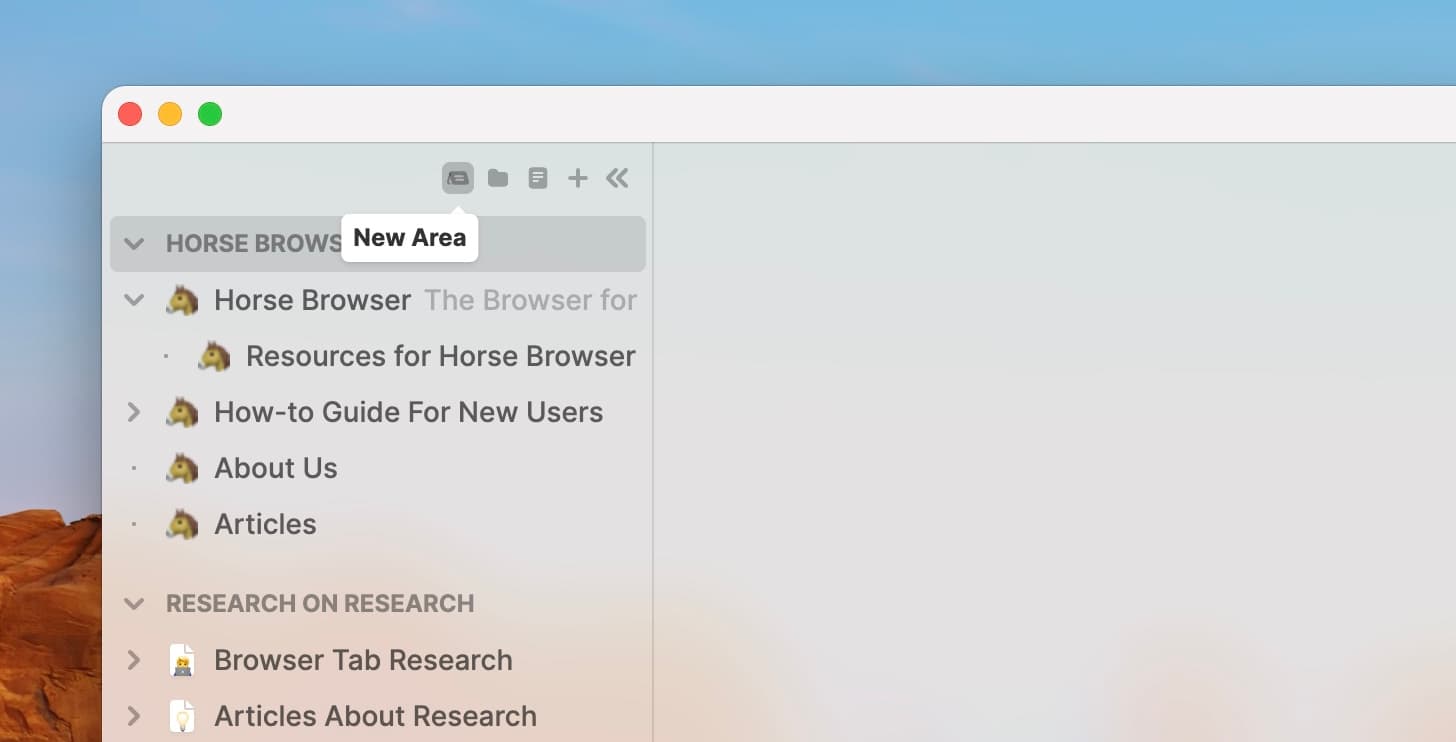
Write the name of your Trailhead and hit Return to save
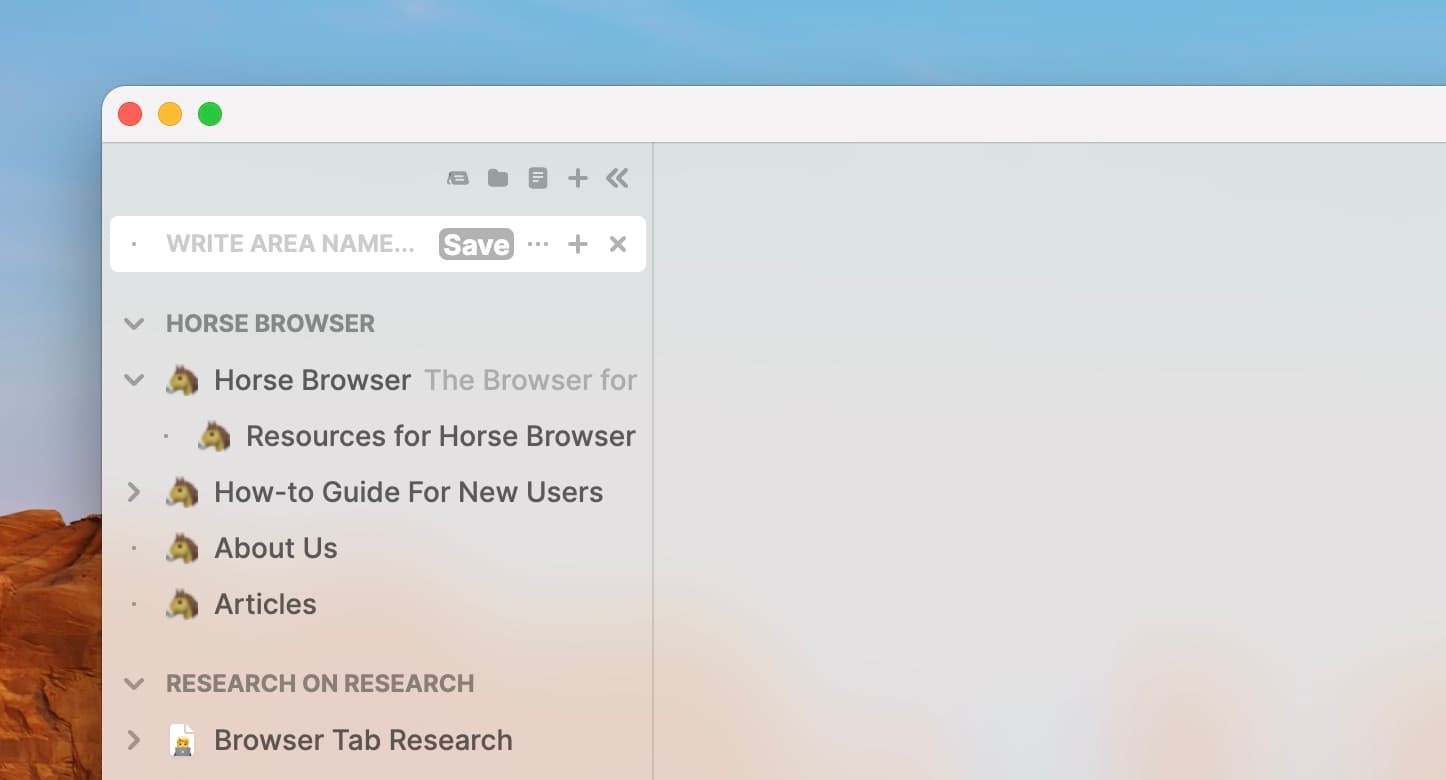
Scroll over the Trailhead and click + to add Subtrails to your Trailhead or use ⌘+T. You can also add Side Trails by using ⌘+⌥+⇧+T.
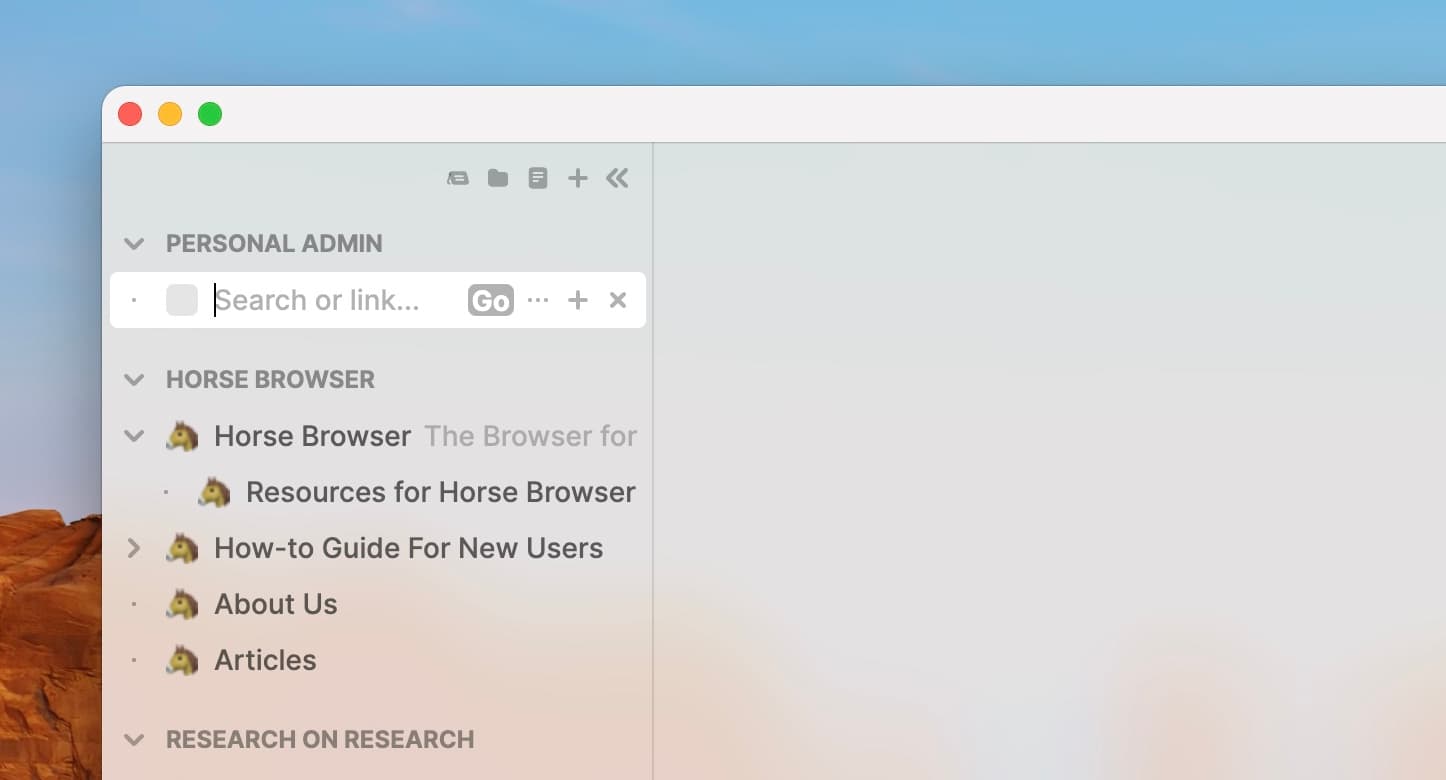
Alternatively, simply drag-and-drop Trails, Folders and Notes inside
How to Use Folders in Horse
To open a new Folder, click on the folder icon at the top of the sidebar
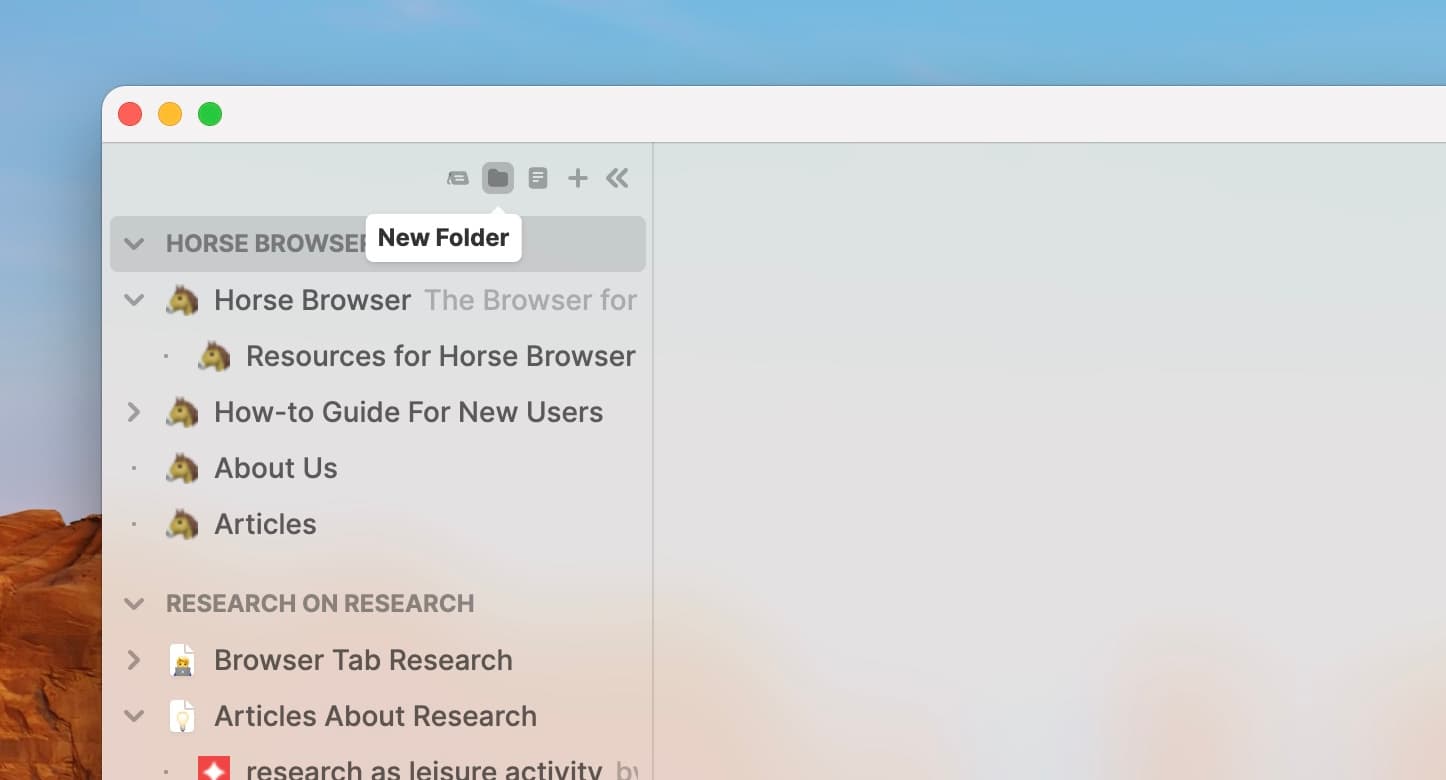
Write the name of your Folder and hit Return to save
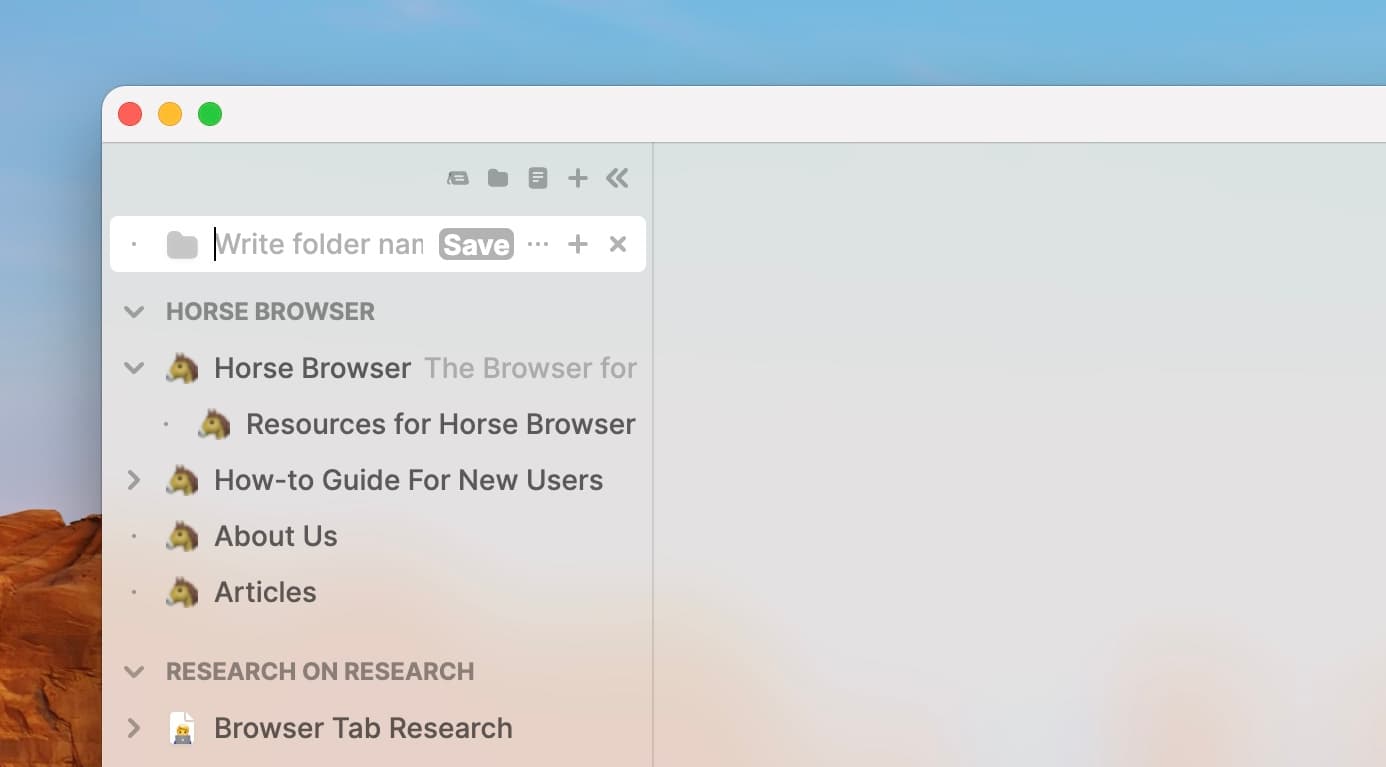
Scroll over the Folder and click + to add a Trail to your Folder. Or use ⌘+⌥+T.
You can also add a Side Trail by using ⌘+⌥+⇧+T
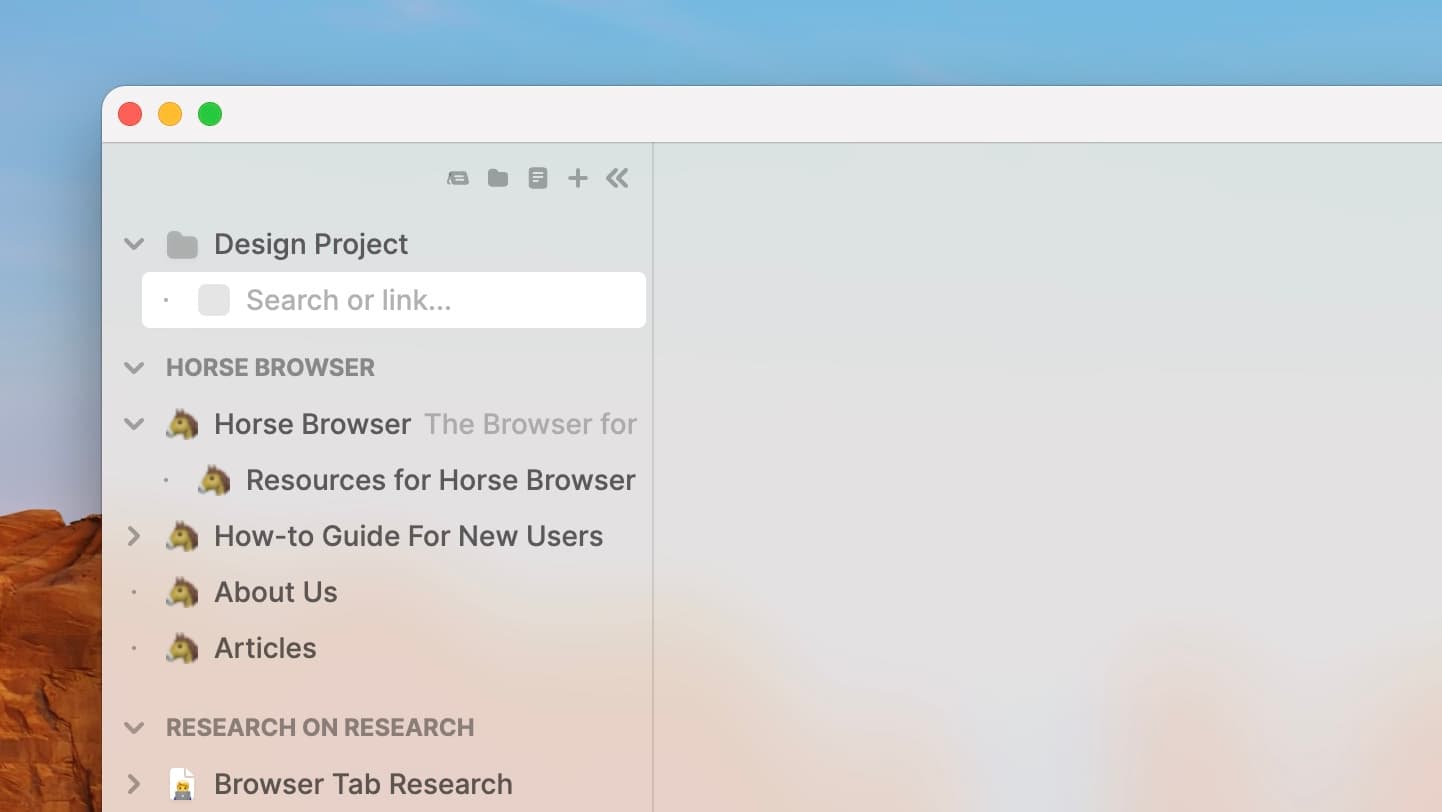
Alternatively, you can simply drag-and-drop Trails, other Folders or Notes inside your Folder.
To add multiple Trails in one go, select the relevant Trails (⌘ + Click) and then right-click to see an option to create a New Folder with the selected Trails.
How to use Notes in Horse
To open a new Note, click on the document icon at the top of the sidebar
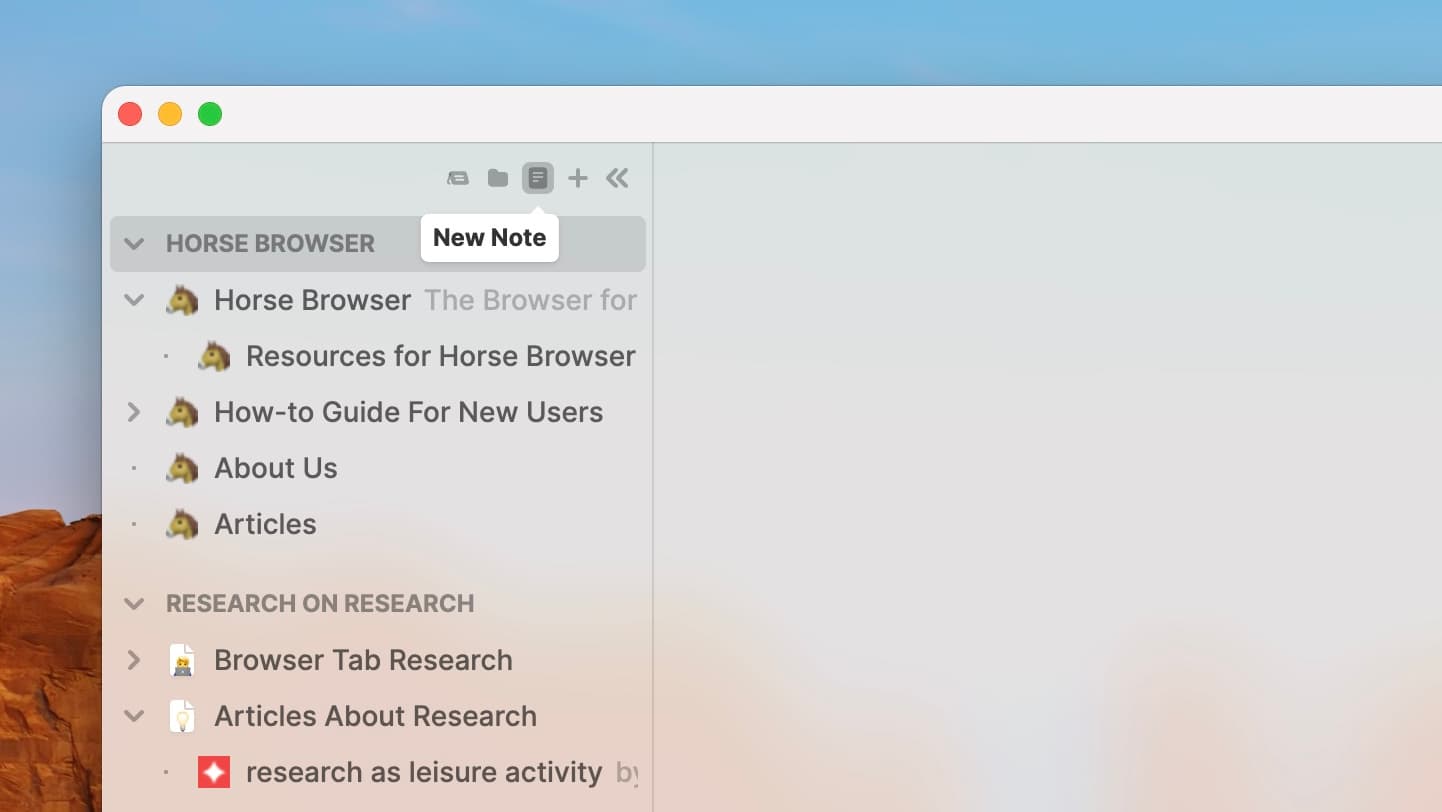
Write the title of your Note and add a custom icon by selecting the blank page symbol to the right of the title

Write the note beneath its title. Horse Notes are plain text.

Scroll over the Note and click + to add Subtrails to your Notes or use ⌘+⌥+T. You can also add Side Trails to your Notes by using ⌘+⌥+⇧+T
Remember, you can drag-and-drop any existing Trails, Notes or Folders into your Notes

Next
That’s all three containers. The final post in the series covers what happens when you quit Horse, what happens when it updates, and how to export important Trail links as a separate Markdown copy.
All posts in this series: