Horse Browser is a new web browser, designed for online research. As you browse, every link opens in a new page and is saved on a Trail, a list of nested pages stored in your sidebar. This means you can keep track of research and say goodbye to the messy tabs you’re used to.
In this post, we’ll share how to access your Downloads in Horse Browser.
How do you view your downloads in Horse Browser?
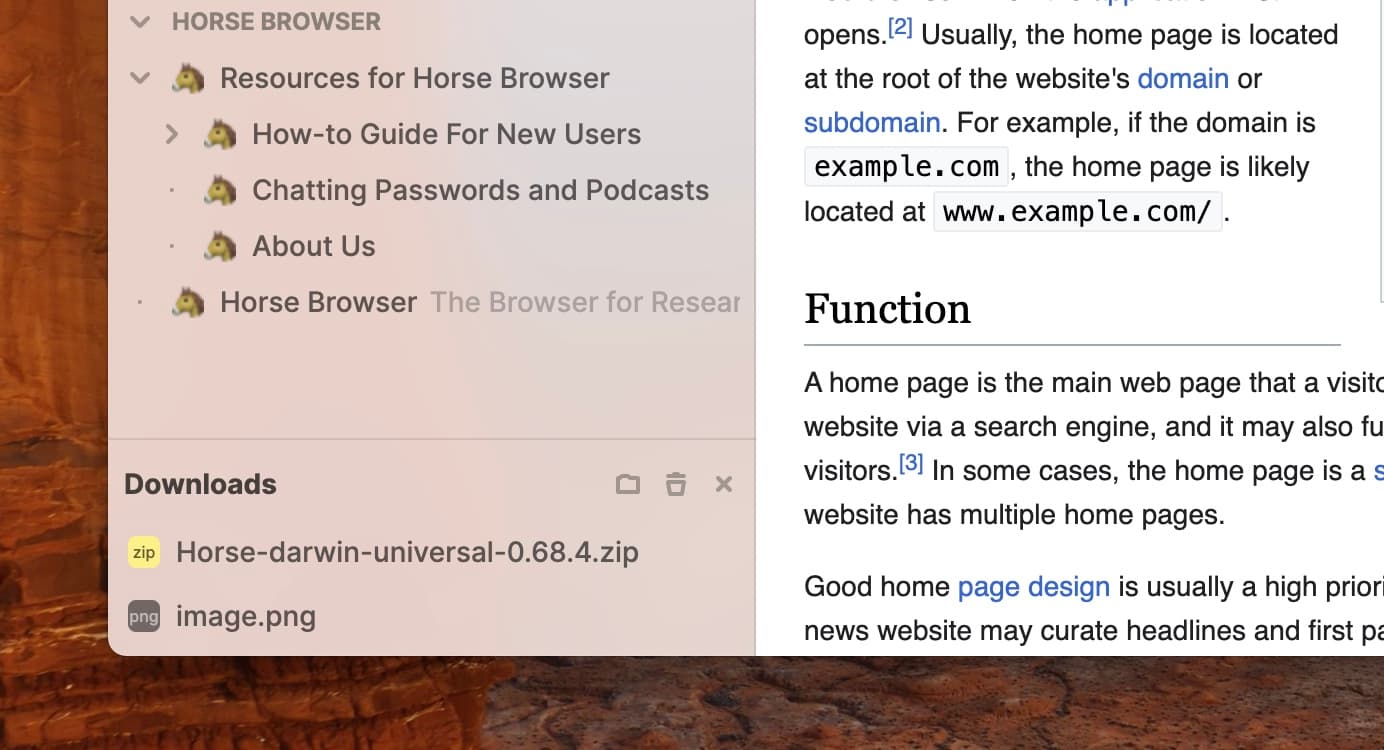
As you download files in Horse Browser, they’ll automatically appear as a list at the bottom of your sidebar. You can remove individual downloaded files from this list by clicking X.
Click on the folder icon at the top of this list to be taken to the files on your desktop.
Empty the Download list in your sidebar by clicking on the trash can.

Where are your downloads stored?
All your files are saved to your default download folder and will remain on your operating system, even after you delete them from the Downloads list on Horse Browser.
How to show and hide your download list
To show or hide your download list anytime, follow the instructions below.
Mouse users:
- Menu > View > Show Downloads
- Menu > View > Hide Downloads
Keyboard users:
- ⌘ + ⇧ + J on Mac
- Ctrl + Shift + J on Windows / Linux
- Use the same shortcuts a second time to remove your Downloads list from view
In conclusion
Accessing your downloads is a simple process in Horse Browser. Your download list can be easily viewed or hidden in your sidebar, whenever you wish. Downloads are stored in your operating system, even after clearing your download list in the browser.
To learn more about Horse Browser, visit here. Or read further posts in our Manual blog series.