In this post, we’ll share how to Google or type a URL in Horse Browser, a new web browser, designed for online research.
Horse Browser replaces your web browsers with Trails. every link opens in a new page and is saved on a Trail, a list of nested pages stored in your sidebar. This allows you to keep track of research and say goodbye to the messy tabs you’re used to.
How to Google or type a URL
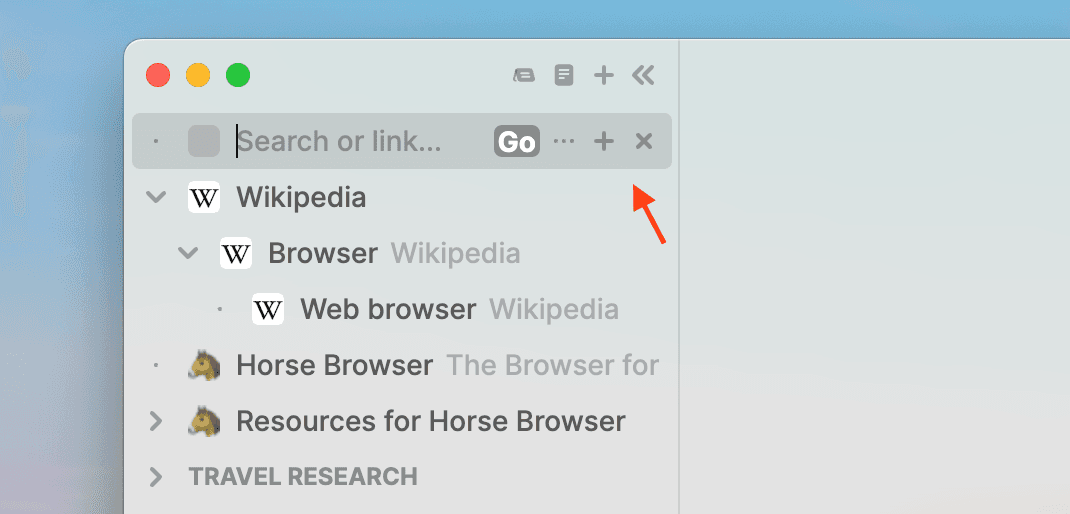
Just as you would open a new Tab in a standard browser so that you can start a Google search or type the URL, you new to open a new Trail to start in Horse Browser.
Keyboard users: ⌘ + T on Mac or Ctrl + T on Windows / Linux
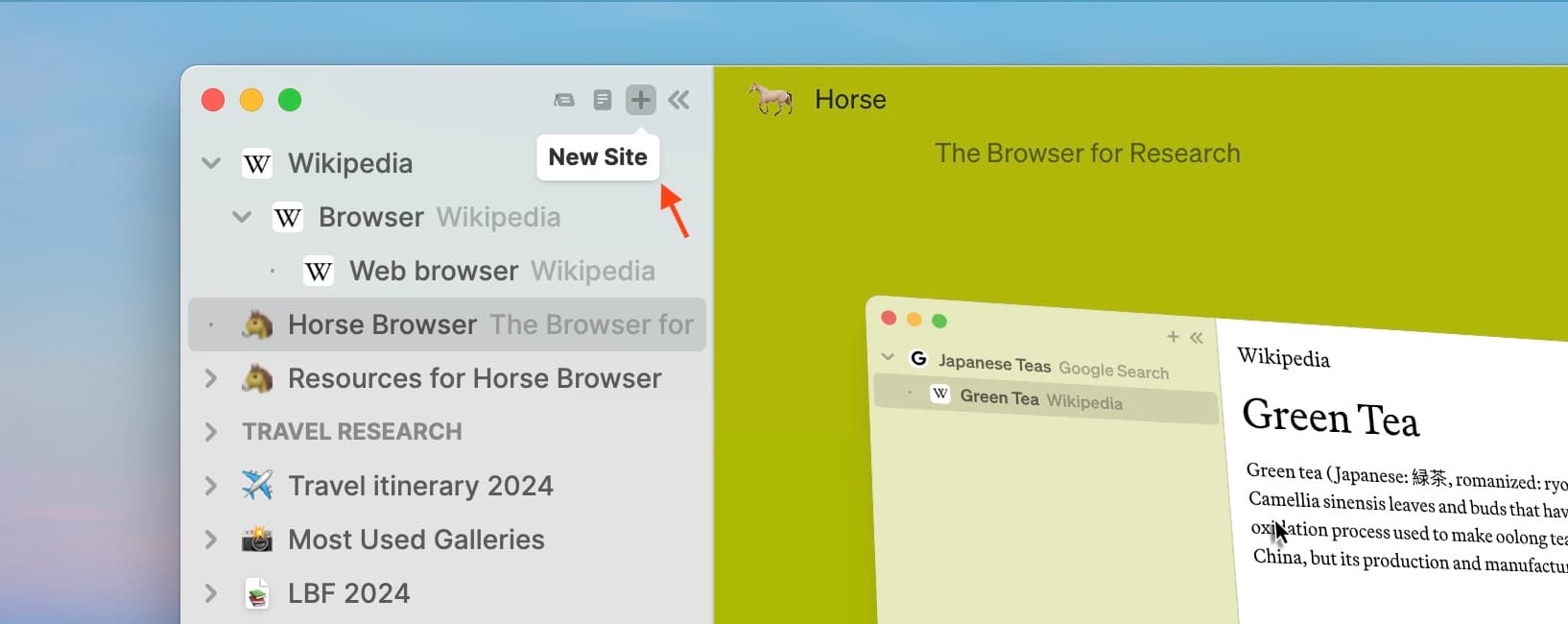
Mouse users: Click + at the top of the sidebar
Congratulations. You’ve opened your very first Trail, which will appear in the top of your sidebar. Simply Google or type the URL you need in the Trail

Hit enter and you’re good to go. From now on, every time you click on a link, a new page will now be opened on the Trail.
How can I view and edit a URL?
While users are navigating the web, they may wish to access a page’s URL to view, edit or copy a link. Horse Browser has made it super simple to do so.
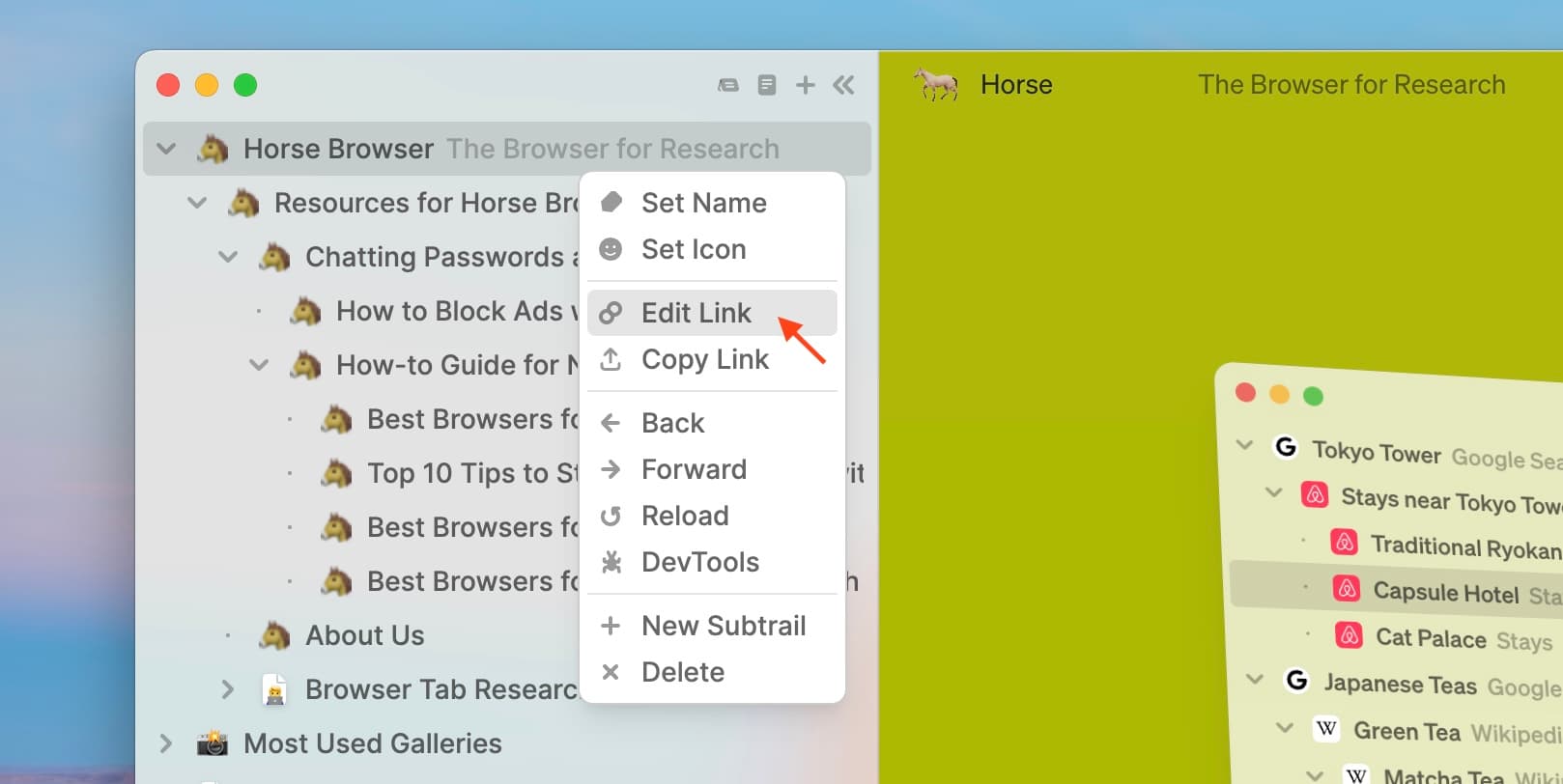
You can double-click on a page anytime to view and edit the URL. Or you can click ••• at the side of each page and choose edit link.

How can I copy a URL?
You can select a URL by clicking a second time on the link. When a URL is selected, enter ⌘ + C on Mac or Ctrl + C on Windows / Linux to copy the URL. You can also copy a URL, by choosing the copy link option, underneath edit link in the ••• menu.
Alternatively, use a keyboard shortcut to copy the URL of the current page. Enter ⌘ + ⇧ + C on Mac or Ctrl + Shift + C on Windows / Linux.
How to use an alternative search engine to Google?
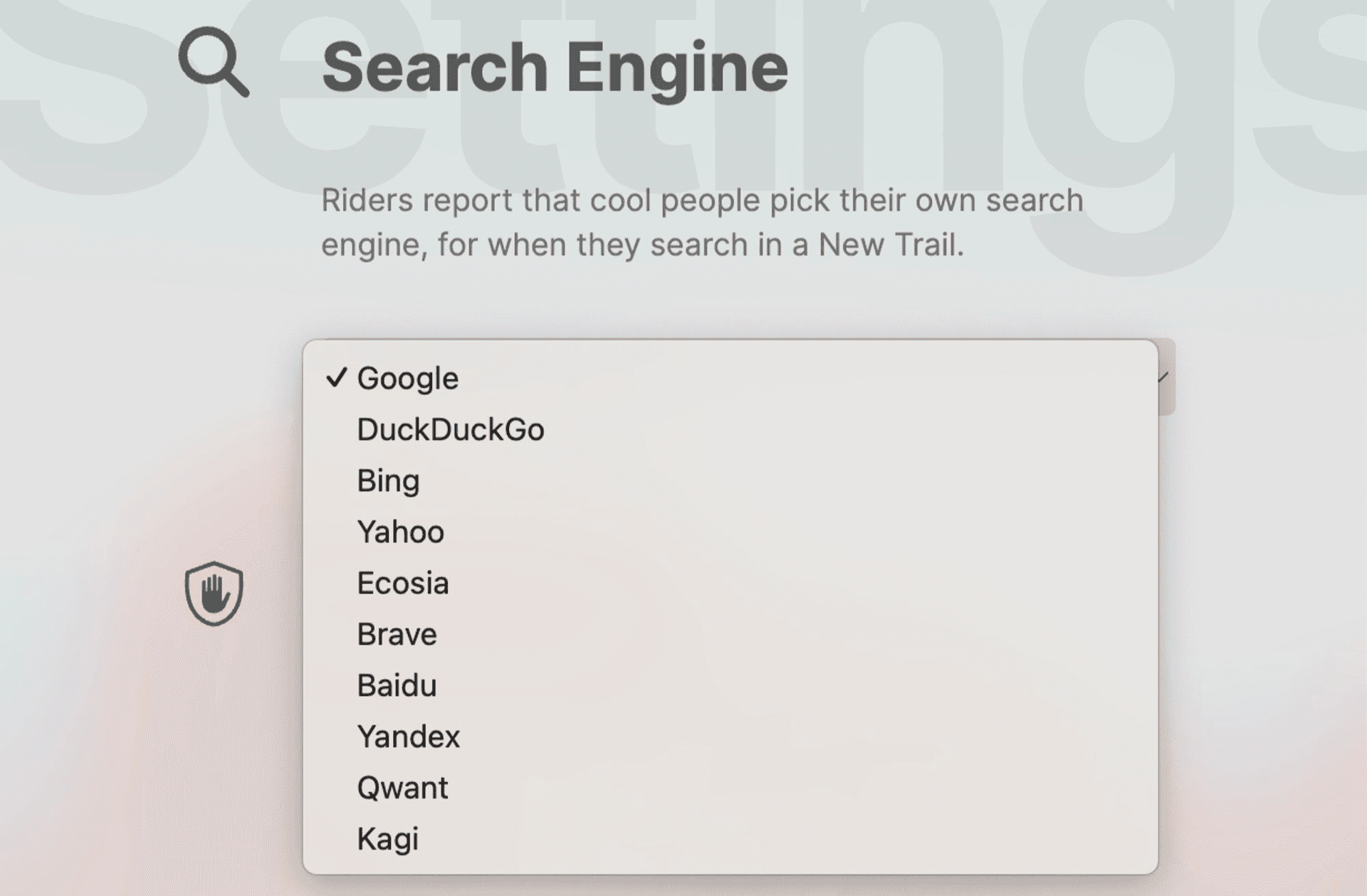
Horse Browser’s default search engine is Google. But you can choose alternatives, such as Bing, Kagi, or DuckDuckGo.
To change your search engine, simply go to
Mouse users: Menu > Horse > Settings
Keyboard users: ⌘ +, on Mac or Ctrl +, on Windows / Linux
And select your preferred search engine from the dropdown menu:
Where is the URL bar at the top of the browser?
You may notice that there is no URL bar at the top of Horse Browser. That’s because Horse Browser was designed to be a distraction-free web browser, that helps you focus on research. You won’t find zip codes cluttering up Google Maps or full addresses listed on apartment buildings so why do you need URL clutter at the top of your browser? It’s simply not necessary to see the address at all times.
URLs are tucked away in Trails and the standard URL bar is removed so that users can enjoy the most calming and minimalist browsing experience possible.
In conclusion
In this post, you learn about how to Google or type a URL in Horse Browser. You also learnt how to view, edit or copy a URL and how to change your default search engine from Google, as needed.
To learn more about Horse Browser, visit here. Or read more how-to guides in our Manual blog series.