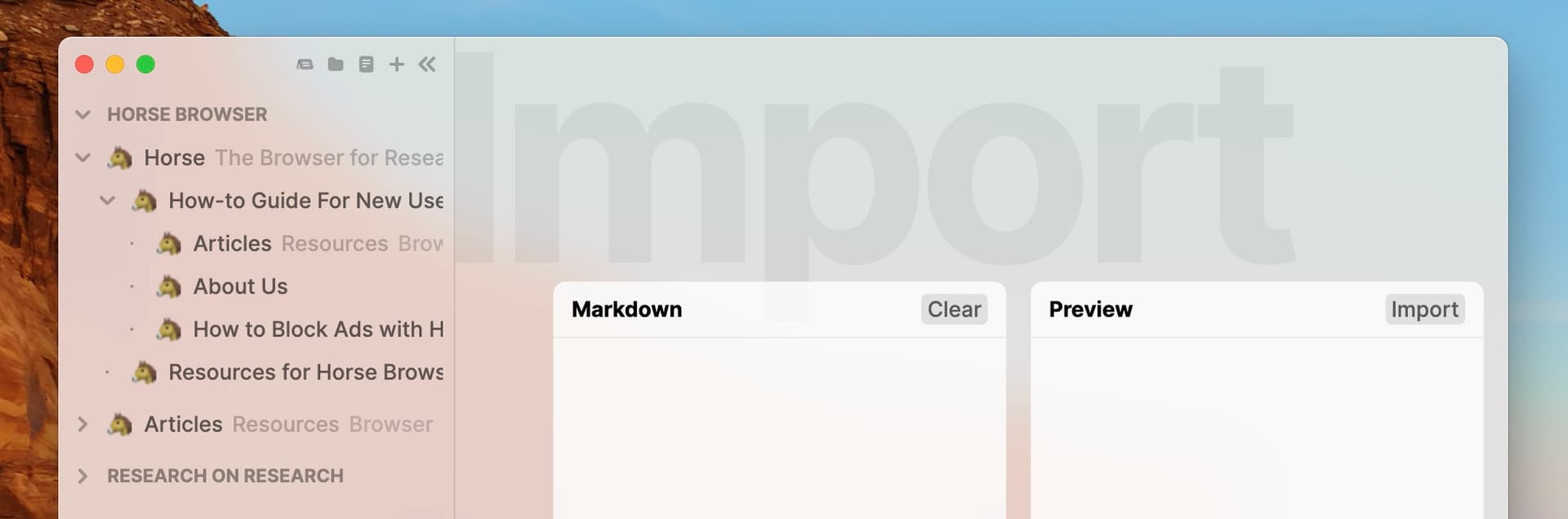
Both directions are Markdown. Pull lists of links out of Notion, Apple Notes, Obsidian, or any text file and import them as Trails®. The Trails guide explains the shape Horse creates. Or export your Trails as Markdown to paste into anywhere else. The format is plain text, so you’re never locked in.
Importing links
-
Horse lets you import links from external apps using Markdown, a simple text format.
-
First, you’ll need to export your links out of the relevant app. In Apple Notes, just copy the text. For other apps, export your links in Markdown by following export instructions in the app.
-
For example, in Notion, you can export a list of links by clicking the ••• menu, selecting Export, and choosing Markdown & CSV. A Markdown file of your Notion page will be saved to your desktop.
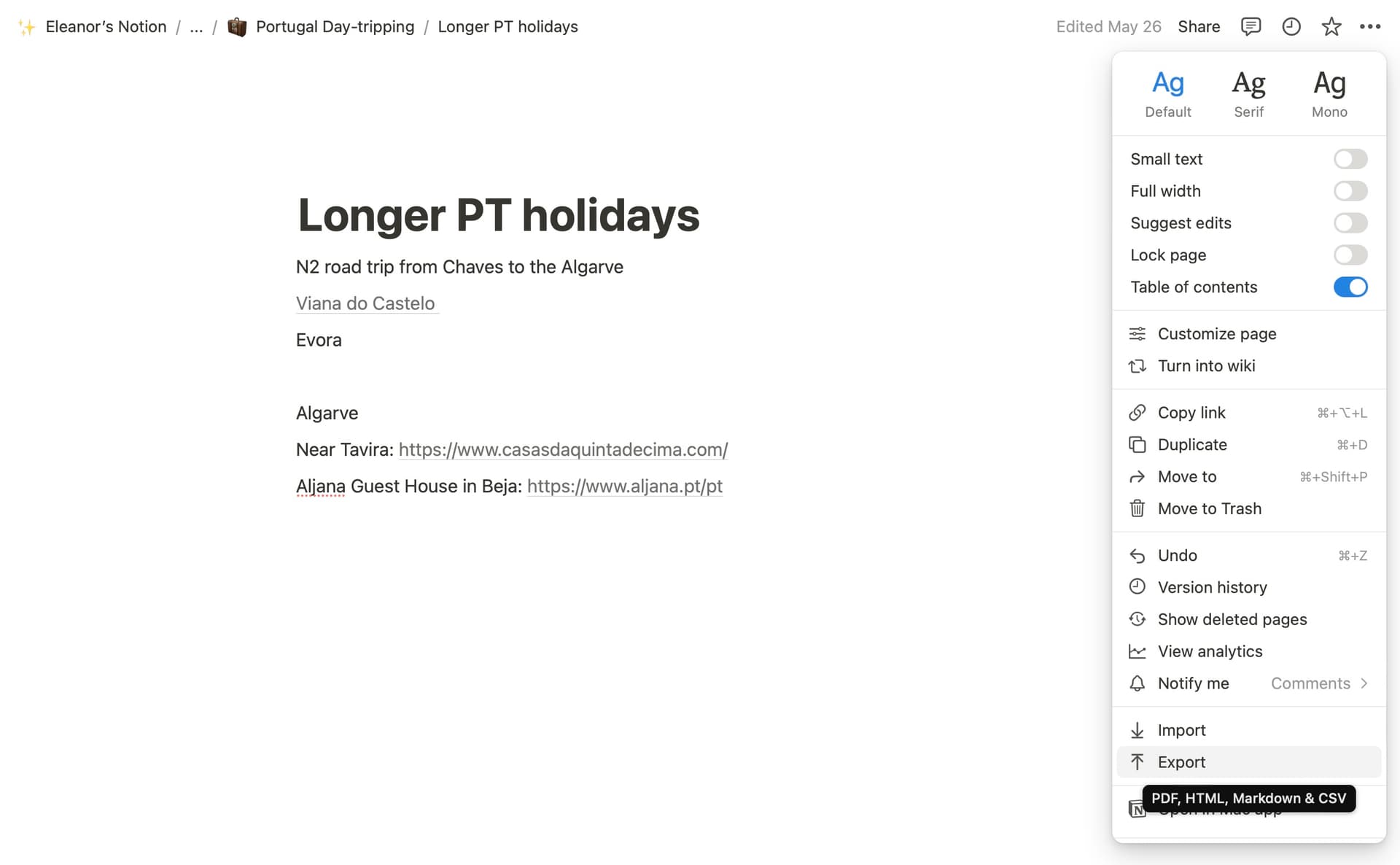
Image 11-09-2024 at 10.26.jpeg -
Open Horse, then go to File > Import Trails. You will be taken to Horse’s Import Editor.
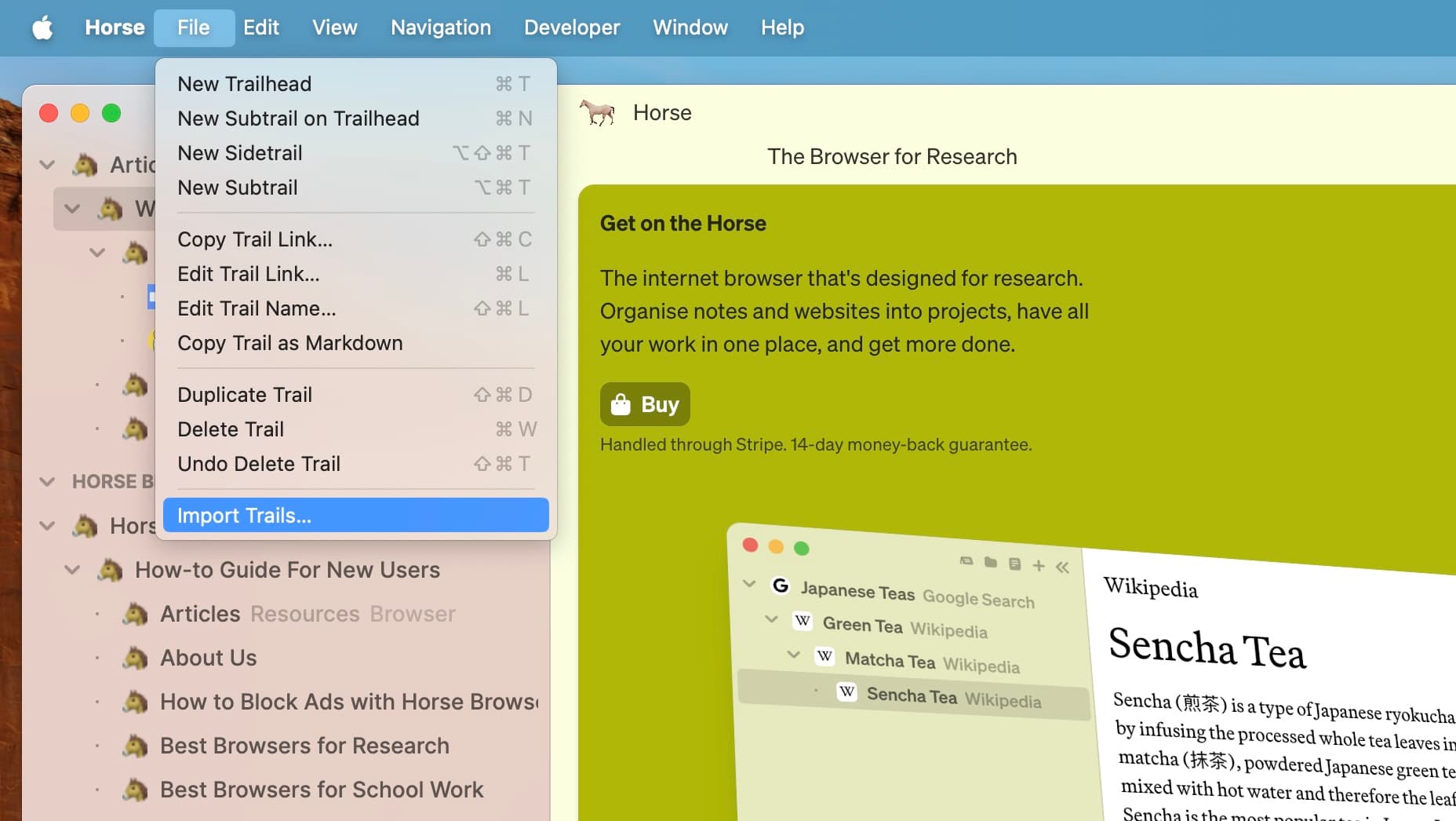
Image 11-09-2024 at 11.40.jpeg -
In the Import editor, paste text from your Notes app or Markdown file into the left column. A preview will appear on the right.
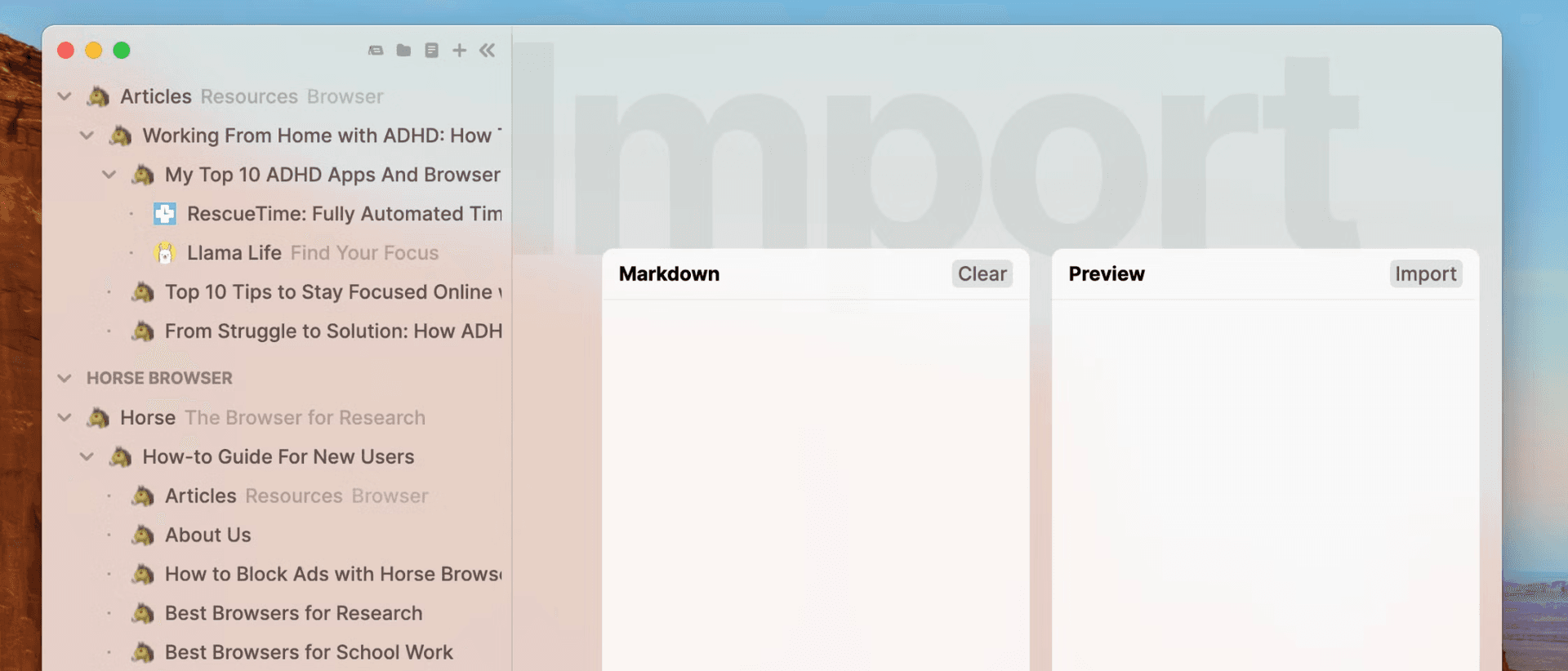
Image 11-09-2024 at 13.05.jpeg -
Edit the text as needed. Use Markdown links such as
[Page](https://example.com), indented lists for nested pages, and headings for folders. For the full syntax, use this cheatsheet.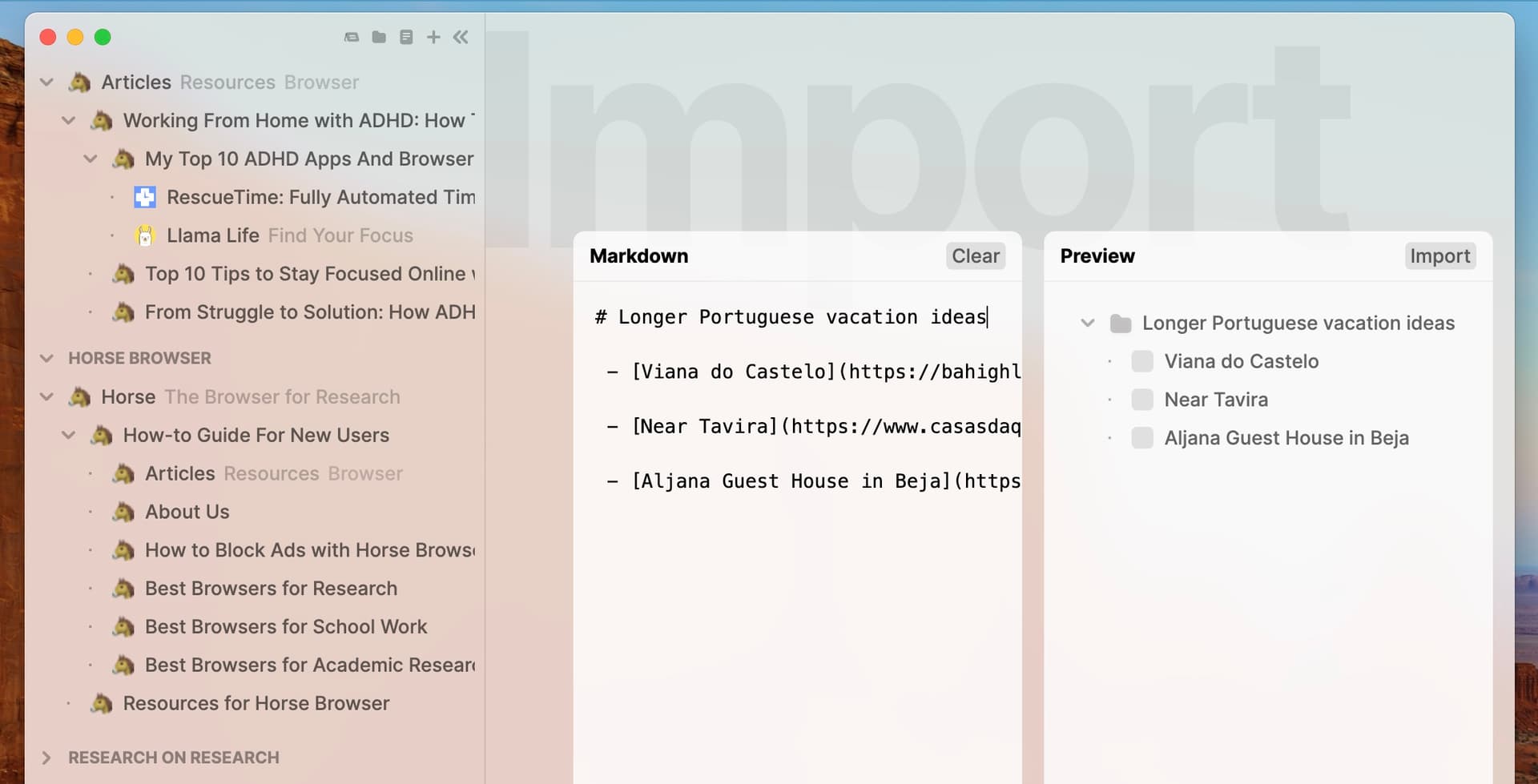
Image 11-09-2024 at 11.03.jpeg -
When satisfied, click Import.
-
Your new Trail will appear at the top of the sidebar, where you can rearrange, rename, and customize it with emojis.

Image 11-09-2024 at 11.06.jpeg
How to export links and Trails from Horse
-
Horse lets you export Trails as Markdown text, which can be used in other Markdown-compatible apps.
-
To export a single Trail, select the Trail you want and go to File > Copy Trail as Markdown. This will copy all the links in your current Trail as Markdown text.
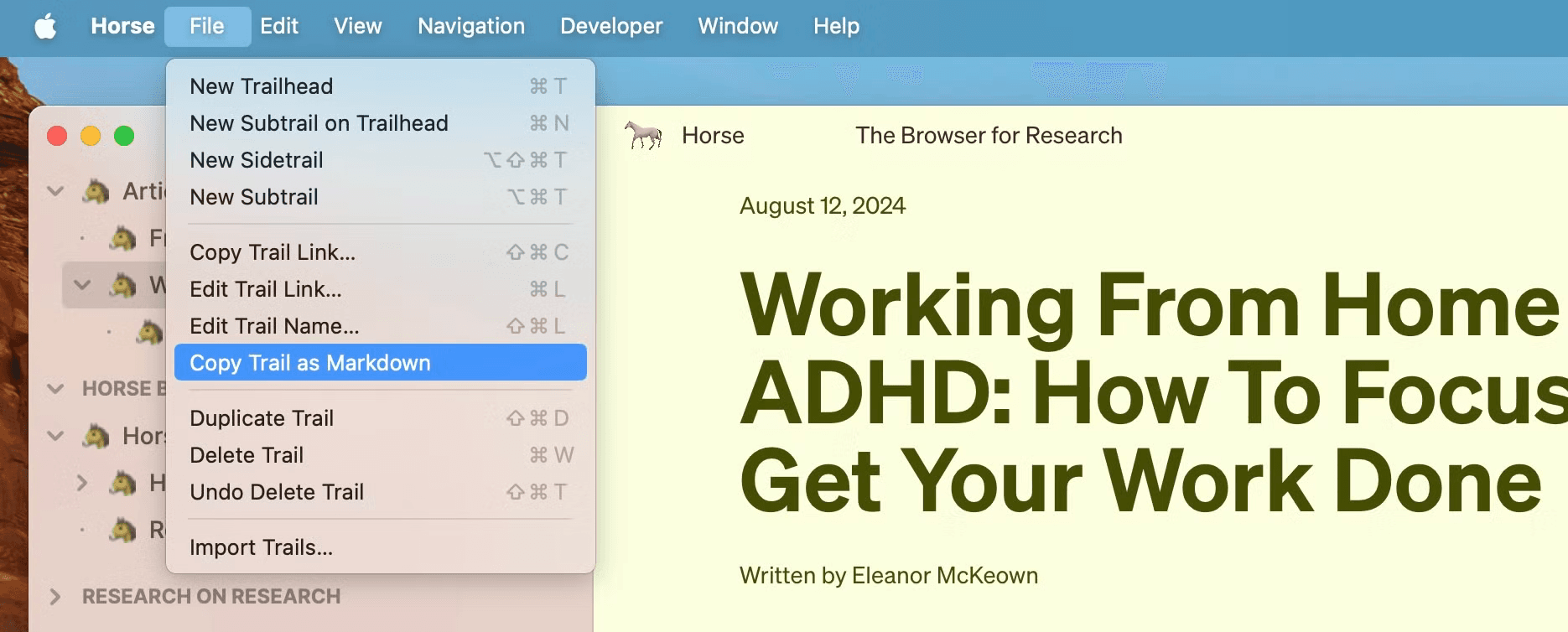
Image 11-09-2024 at 10.15 (1).jpeg -
Alternatively, select several Trails with ⌘-click or Shift-click, then right-click to copy the selection.
-
Paste your copied text into your preferred Markdown editor and make any necessary changes.
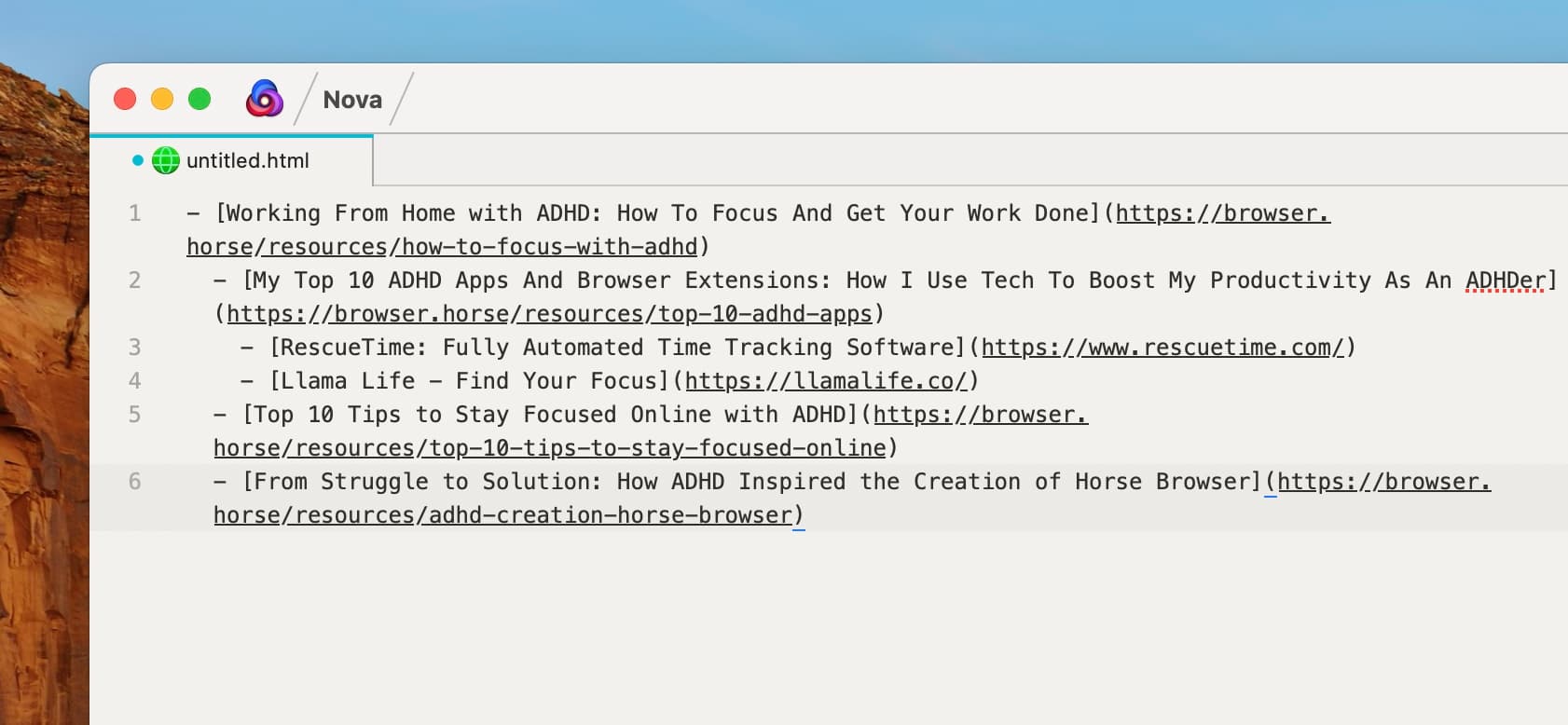
Image 11-09-2024 at 10.19.jpeg -
Finally, paste or import the Markdown text into your chosen app, following that app’s import instructions. Here you can see the Markdown text above pasted into a new Notion page.

Image 11-09-2024 at 12.08.jpeg
More
The offline copy guide explains how to save selected Trails somewhere separate and exactly what that Markdown copy leaves out. The Markdown cheatsheet is the syntax reference if you’re hand-editing.