Are you frequently researching and comparing data online?
Horse Browser is a new web browser, designed for online research. As you browse, every link opens in a new page and is saved on a Trail, a list of nested pages stored in your sidebar. This means you can keep track of research and say goodbye to the messy tabs you’re used to.
In this blog post, we’ll share some of Horse Browser’s excellent Find in Page tool, that is useful for comparing data and finding information across your pages.
Horse Browser’s Find In Page Tool
We all have times when we’re struggling with complex documentation or a huge excel spreadsheet of data. But, don’t worry, Horse Browser has you covered with the Find in Page toolbar.
Let’s dive into our tips for getting the most out of this feature in Horse Browser.
How To Access Your Find in Page Toolbar
To access the Find in Page toolbar:
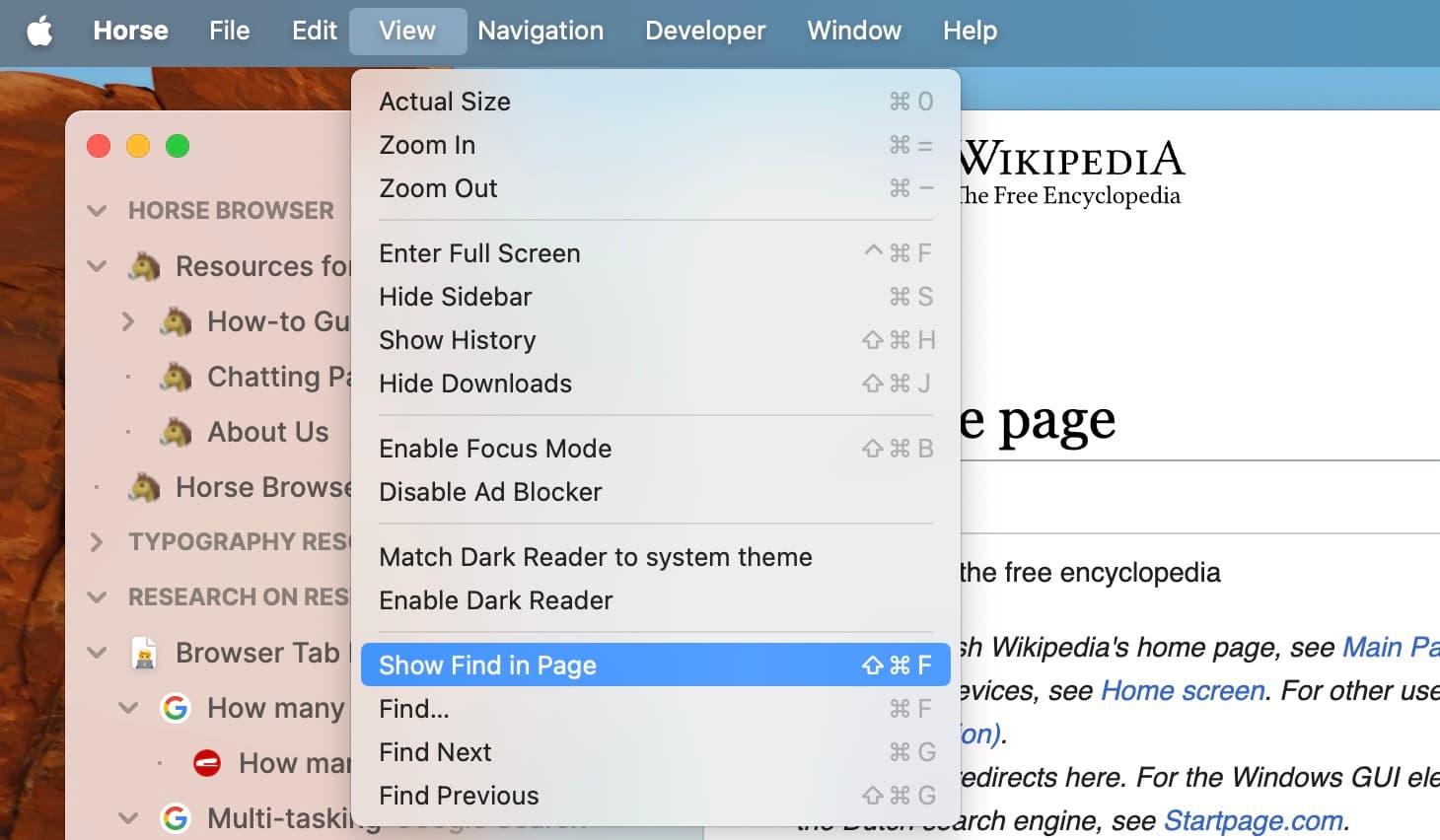
Mouse users: Go to Menu > View > Show Find in Page
Keyboard users: ⌘ + F on Mac or Ctrl + F on Windows / Linux

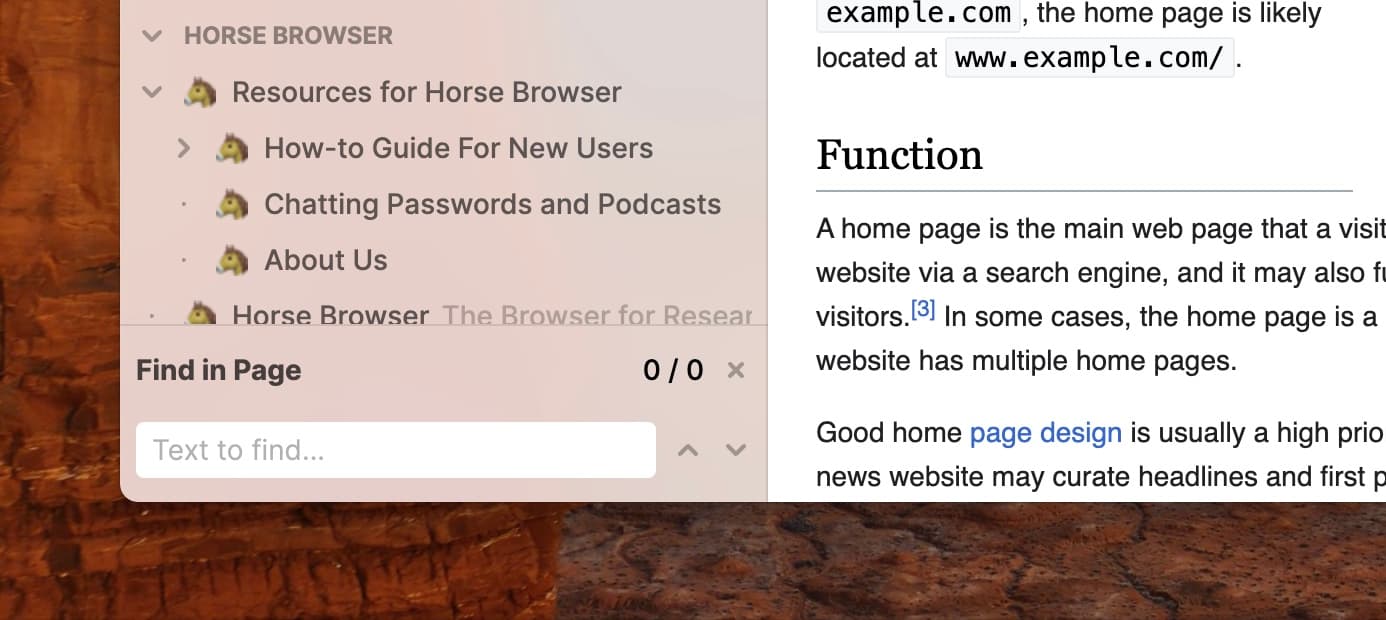
The Find in Page toolbar will appear at the bottom of your sidebar. Enter the search term you’re looking for and press enter… Bingo!! The term you’re searching for will be highlighted throughout the page.

Next, use the navigation arrows in your Find in Page toolbar to find next and previous instances of the search term. Or just keep hitting Enter to scroll through.
Keyboard Shortcuts For Find In Page
Horse Browser has some handy keyboard shortcuts that make searching even faster.
To Find in Page:
⌘ + F on Mac or Ctrl + F on Windows / Linux
To Find Next:
⌘ + G on Mac or Ctrl + G on Windows / Linux
To Find Previous:
⇧ + ⌘ + G on Mac or Shift + Ctrl + G on Windows / Linux
To hide the Find in Page toolbar:
⇧ + ⌘ + F on Mac or Shift + Ctrl + F on Windows / Linux
How To Compare Data and Research Across Pages
You can also apply the Find in Page action across different pages. So, if you have a Trail of research papers on a certain topic, you can move between these pages and Find in Page on each new page.
This is a super useful action for times you want to compare data across different sources and documentation.
In conclusion
Horse Browser’s Find in Page tool is an excellent search tool for researchers, coders or anyone else who uses and compares a lot of data online. It can be easily accessed via the browser’s Menu or by using the relevant keyboard shortcuts.
To find out more about Horse Browser, visit here. Or for more how-to guides, visit the Manual blog series.