How to enable the title bar in Horse Browser?

May 6th, 2024

Horse Browser hides the title bar by default. Here’s how to bring it back if you want a familiar drag handle at the top of the window.

95 words by Eleanor McKeown

Horse Browser hides the title bar by default, that’s why the window looks taller than other browsers. The sidebar still works as a drag handle, so most people don’t notice. If you’d rather have the familiar bar back, here’s how.

Horse Browser’s title bar

Enabling the title bar

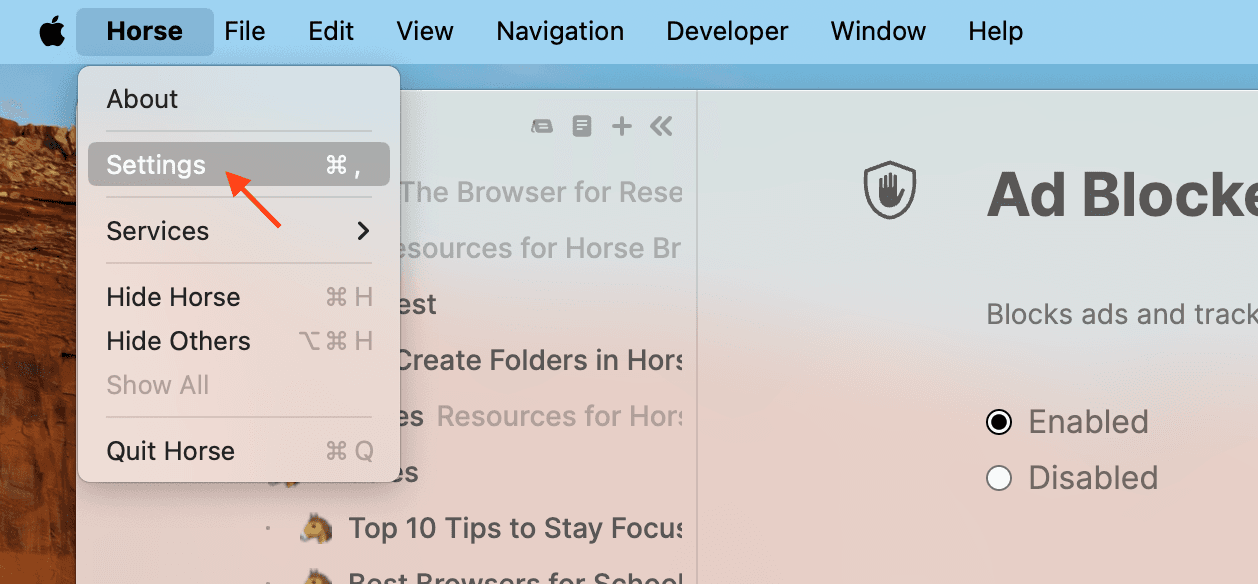
Menu > Settings, or +,.

Horse Browser’s Menu bar with Settings selected

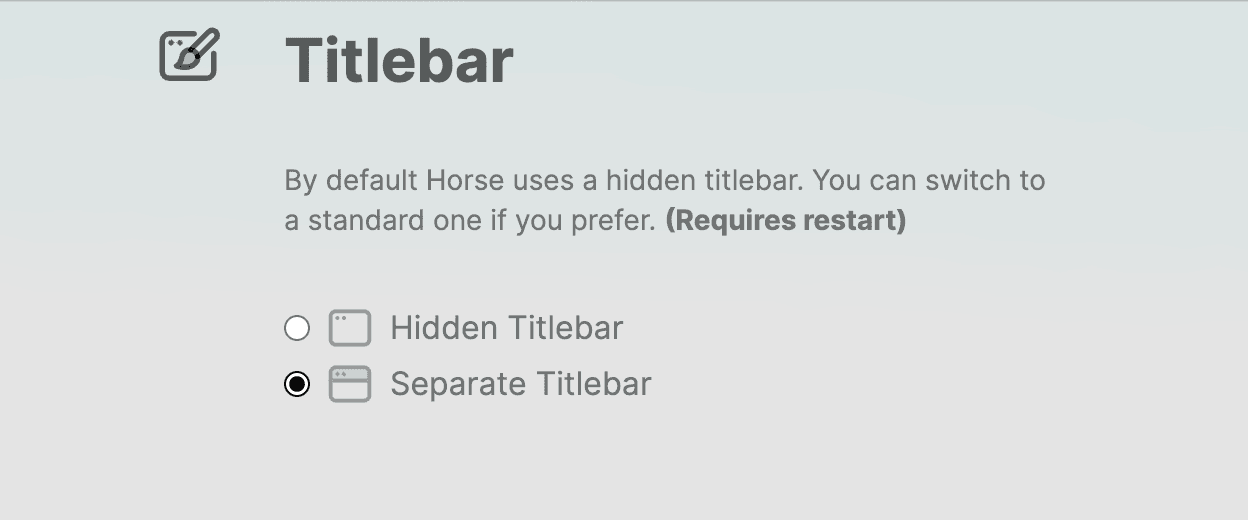
Scroll to Titlebar and turn it on.

Horse Browser title bar feature

Quit and reopen Horse for the change to take effect: right-click the dock icon and Quit, or Menu > Horse > Quit Horse, or +Q.

Horse Browser with the title bar feature enabled

Hiding it again

Same Settings panel, toggle off, quit and reopen.

Get on the Horse

The browser built for ADHD minds. Trails® keep the task alive when a tangent or interruption carries you elsewhere.

favicon
Japanese Green TeasGoogle Search
favicon
Japanese Green TeaWikipedia
favicon
MatchaWikipedia
favicon
SenchaWikipedia
Sencha

From Wikipedia, the free encyclopedia

Sencha tea leaves and brewed tea

Sencha tea leaves and brewed tea

Sencha (煎茶) is a type of Japanese ryokucha (緑茶, green tea) which is prepared by infusing the processed whole tea leaves in hot water. This is as opposed to matcha (抹茶), powdered Japanese green tea, where the green tea powder is mixed with hot water and therefore the leaf itself is included in the beverage. Sencha is the most popular tea in Japan.
Types of sencha

The types of sencha are distinguished by when they are harvested. Shincha(新茶, "new tea") represents the first month's harvest of sencha. Basically, it's the same as ichibancha(一番茶, "first tea"), which is the first harvest of the year.

Kabusecha (かぶせ茶) is sencha grown in the shade for about a week before harvest. Asamushi (浅蒸し) is lightly steamed sencha, while fukamushi (深蒸し) is deeply steamed sencha.

Production

Sencha tea is made from the leaves of the Camellia sinensis plant. The leaves are steamed, rolled, and dried immediately after harvest to prevent oxidation. This process preserves the fresh, grassy flavor that sencha is known for.

The steaming process used in making sencha is what differentiates it from Chinese green teas, which are typically pan-fired. The duration of the steaming process affects the final taste and color of the tea.

Brewing

Sencha is typically brewed at lower temperatures than black tea or oolong tea. The ideal water temperature is usually between 60–80°C (140–176°F), with brewing time ranging from 1 to 2 minutes.

The tea can be brewed multiple times, with each infusion revealing different flavor notes. The first brew tends to be more astringent and fresh, while subsequent brews become milder and sweeter.

Get the Good Horse Email

One useful feature, one good story, or one meaningful update. We only send when we have something worth opening.

Unsubscribe anytime.
Horse NewsletterIssue #12

Your browser can remember the internet for you.

Drag a Trail into your notes and the whole branching path lands as Markdown. Yes, the entire tiny family tree. Computers love carrying things!

Read the Manual

Every button, shortcut, Trail, folder, note, and slightly secret Horse trick, explained plainly.

Open the Manual
Opening page of the Horse Browser manual

Need Help?

Find the answer, manage your license or billing, and get Horse back onto the Trail.

Get Help
Pascal and Eleanor at Disneysea Tokyo